How to build a decision tracing context graph with Apache Airflow®
2023 was the year of the LLM. 2024 was the year of the Agent. 2025 was the year of the Human-in-the-loop. You’ve done it all. Integrated LLMs into your workflows, made lobster agents run 24/7, implemented human approval steps before sending that AI generated compliance report to the authorities (hopefully). What is the next step? The phrase of 2026 has already been decided: **decision tracing context graph**. The full, end-to-end record of not just results and outputs, but the decisions, actions, and reasons that went into creating that 5 star customer support response, top-selling product, differentiating feature, and disruptive new strategy. Your Agents can only get smarter if they understand how decisions in your organization are made. This is why decision traces have become [“the single most valuable asset for companies in the era of AI”](https://foundationcapital.com/context-graphs-ais-trillion-dollar-opportunity/). But what does a decision tracing context graph look like in practice? This blog walks through a simple but powerful example of a Dag that uses AI to answer support tickets and a human to *decide* if the answer needs adjustments using a Slack human-in-the-loop Airflow plugin. As soon as the decision is made, the full decision context itself is gathered using Airflow, available to the AI agent in the future. **Today’s business decisions are tomorrow’s AI context.** 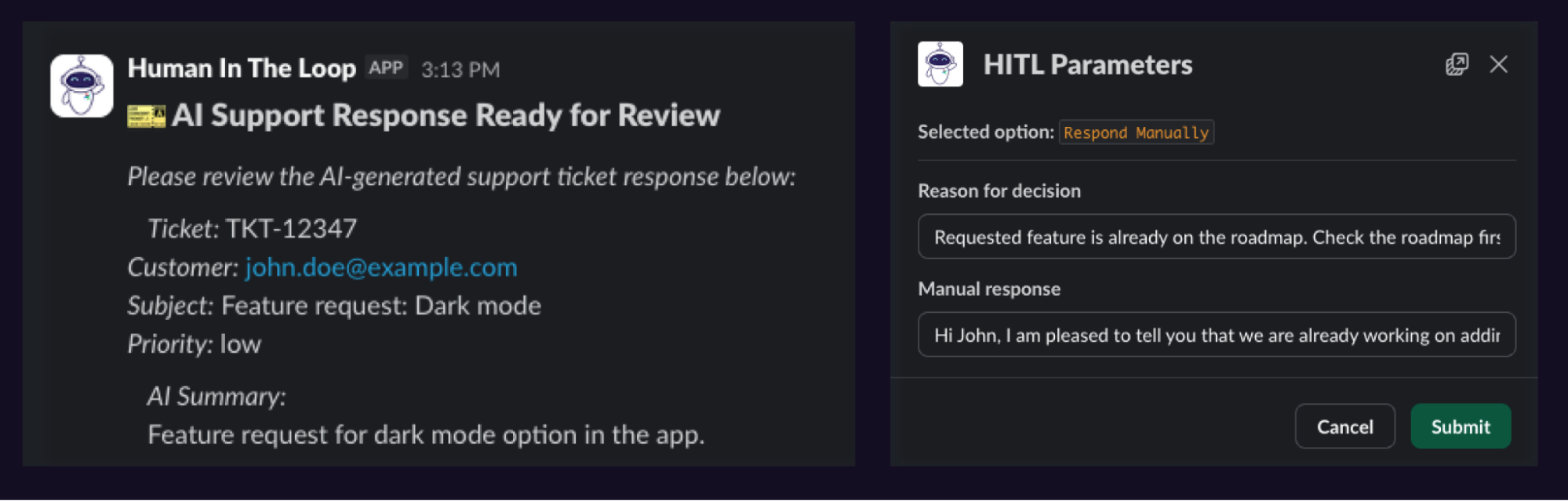 > If you are in a hurry you can find the full code for decision tracing pipeline including the Slack HITL plugin in [this GitHub repository](https://github.com/TJaniF/airflow-hitl-slack-plugin). ## Why use Airflow to build a context graph? The context going into a decision sometimes appears almost ephemeral, being spread across tools, humans working and communicating in different applications, and agents running in the cloud, on-prem, and on edge devices. The full picture, full decision trace, can only be gathered [by a platform that touches *everything*](/blog/localized-orchestrators-will-lock-you-out-of-enterprise-ai/). Airflow is the industry standard for workflow orchestration precisely because it can connect to anything that has an API, run any task you can define in code, and knows your data ecosystem inside-out. You’ve already been building your context graph with every Airflow Dag you write. Your Dag and task-dependencies are a living record of your organization’s inner workings, all are nodes in your context graph. The missing piece is capturing **why** a human approved something, rejected it, or asked for changes, and feeding that context back to the AI Agent. ## Step 1: Define the decision points Airflow is the source of truth and Dags form the context graph. With the Airflow 3.1 [human-in-the-loop (HITL) feature](https://www.astronomer.io/docs/learn/airflow-human-in-the-loop) you can track decisions natively with your Airflow Dags by adding a HITLOperator. Once the Dag run reaches this operator the task will defer itself, meaning it runs an asynchronous process in the Triggerer component (not even taking up a worker slot) and waits for you, or any entity (human or agent) in your organization to choose an option and submit additional information in pre-defined fields. 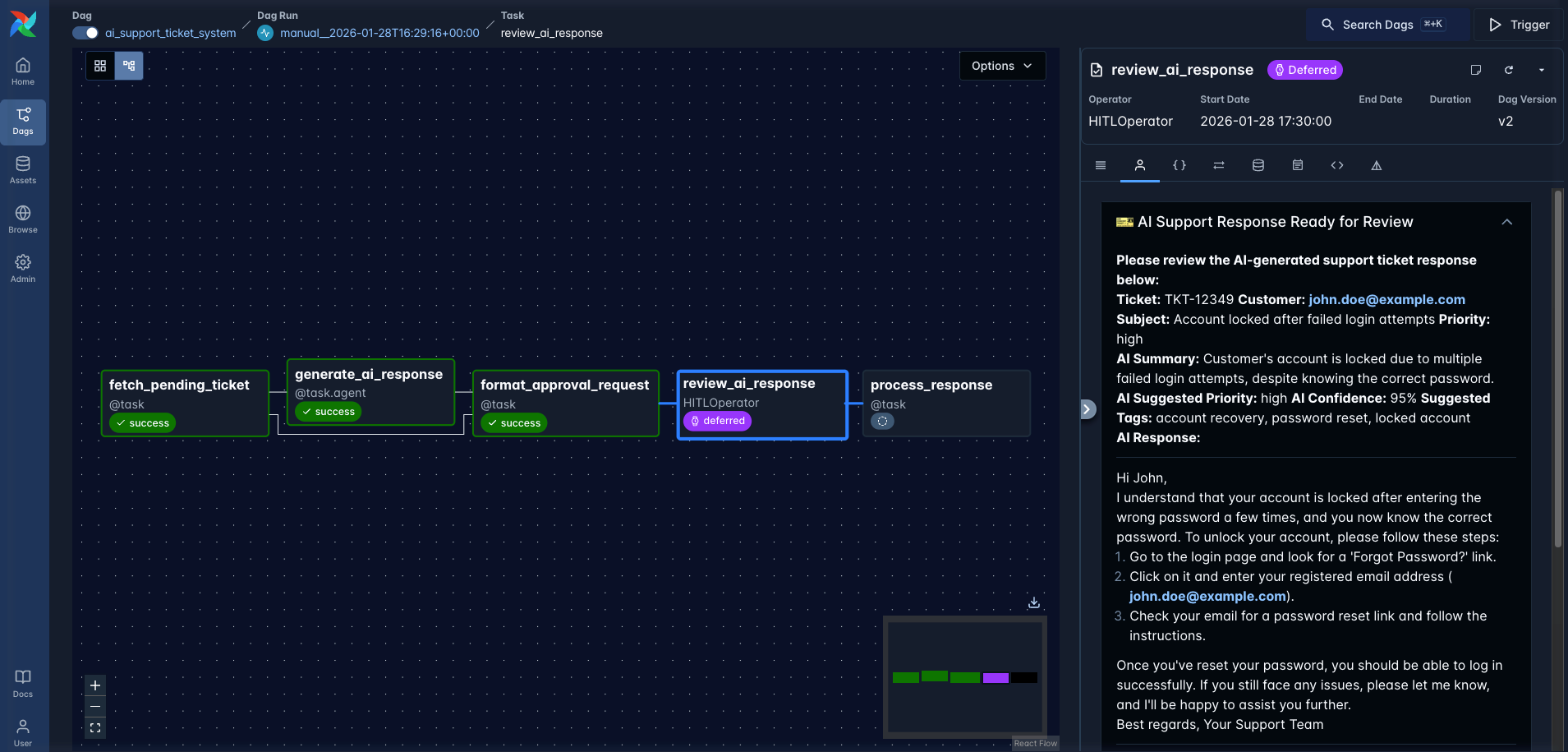 *Figure: A screenshot of the example Dag during a run having reached the review\_ai\_response task defined with the HITLOperator.* Let’s look at a concrete example! Most organizations are running AI Agents to create first drafts of answers to support tickets. The `ai_support_ticket_system` Dag does exactly that, it fetches a pending support ticket and passes it to the `customer_success_agent`, orchestrated using the [Airflow AI SDK](https://github.com/astronomer/airflow-ai-sdk). ```py @task.agent(agent=customer_success_agent) def generate_ai_response(ticket: dict): import json ticket_str = json.dumps(ticket) return ticket_str _generate_ai_response = generate_ai_response(ticket=_fetch_pending_ticket) ``` The agent generates a response to the ticket. This is where a lot of organizations switch to a manual workflow, with a human going through and approving or denying the AI response in a 3rd party system, leading to a loss of the *why* behind a specific ticket being approved or denied. In order to level up, you need to gather that context gold by adding a HITLOperator. This operator displays the original support ticket to your human in the loop, alongside the AI generated response. The human can now choose any of 3 options: Approve the AI response, Respond Manually instead, or Escalate to the customer engineering team. Crucially, the human is asked to provide a reason for their decision. And this information is retained by Airflow and we’ll collect it in step 3! ```py _review_ai_response = HITLOperator( task_id="review_ai_response", subject="🎫 AI Support Response Ready for Review", body="""**Please review the AI-generated support ticket response below:** {{ ti.xcom_pull(task_ids='format_approval_request')['ticket_info'] }} **AI Summary:** {{ ti.xcom_pull(task_ids='format_approval_request')['summary'] }} ....""", options=[ "Approve AI Response", "Respond Manually", "Escalate to CRE", ], multiple=False, defaults=["Escalate to CRE"], params={"notes": Param(type=["string", "null"], default="...")}, execution_timeout=timedelta( hours=4 ), # after 4 hours the default option will be selected ) ``` Why even have a human-in-the-loop? Well, it depends on how mission critical your use case is and the risks if there is a mistake. AI Agents can do a lot but it is not wise yet, to let them run fully unsupervised, as recent experiments have shown. Unless you are planning a [Playstation 5 giveaway for your customers](https://www.wsj.com/tech/ai/anthropic-claude-ai-vending-machine-agent-b7e84e34), you still likely want to double check AI outputs before they reach important systems or external stakeholders. ## Step 2: Meet users where they are at The human-in-the-loop feature comes with an intuitive interface, directly in the Airflow UI, which is great if you, the Dag author, are the human in the loop. But non-technical stakeholders might not have access to your Airflow environment or may struggle to navigate it. Also, no one wants to have to log into yet another UI and have yet another browser and mental tab open to deal with. Luckily the HITL feature has full API support, which means when using Airflow to build your decision trace, you can go to where decisions are made, like emails, MS teams, or Slack. **Don’t ask business users to leave their favorite tools.** For this example, I built a human-in-the-loop Fast API plugin for Slack. The end user does not need to know anything about Airflow or context graphs. They just get a friendly Slack message asking them for input.
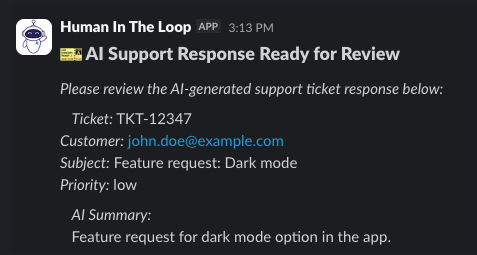 Figure: Start of the Slack message sent by the Airflow plugin asking the customer support human to review the AI generated answer to the support request.
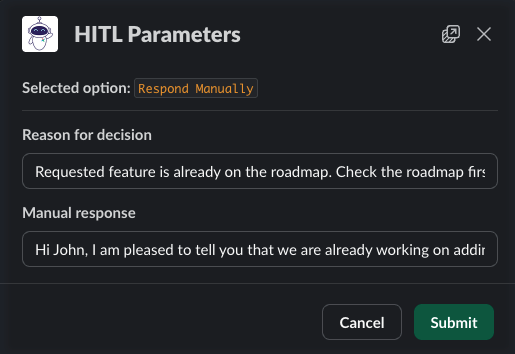 Figure: Slack response form showing the manual override of the AI answer including the reason for the decision.

Get started free.
OR
API Access
Alerting
SAML-Based SSO
Airflow AI Assistant
Deployment Rollbacks
Audit Logging
By proceeding you agree to our Privacy Policy, our Website Terms and to receive emails from Astronomer.