

Astro is the industry’s leading managed service for Apache Airflow®. To quickly learn how Astro works, follow the steps in this quickstart to create an Airflow environment and run your first dag.
When you first sign up for Astro, you can choose to tailor your experience based on how you plan to use Astro. The onboarding process includes:
This tutorial takes about 15 minutes. If you’re new to Airflow and want a more in-depth tutorial, see Airflow 101 Learning Path.
If you’re on your organization’s network and can’t access Astro, make a request to add the following domains to the allowlist on your network:
https://cloud.astronomer.io/https://api.astronomer.io/https://images.astronomer.cloud/https://auth.astronomer.io/https://updates.astronomer.io/https://install.astronomer.io/https://astro-<organization-short-name>.datakin.com/https://<organization-short-name>.astronomer.run/Based on how you plan to use Astro, you can find more resources for particular topics relevant to your needs.
Enter a name for your Organization and Workspace. These can be changed later in the Astro UI.
An Astro Organization is the highest level entity in Astro and represents a shared space for your company on Astro. An Organization is automatically created when you first sign up for Astronomer. At the Organization level, you can manage all of your users, Deployments, Workspaces, and clusters from a single place in the Astro UI. A Workspace is a collection of Deployments that can be accessed by a specific group of users.
An Astro project contains the set of files necessary to run Airflow, including dedicated folders for your dag files, plugins, and dependencies. Select a template Astro project to immediately get a demonstration of Airflow’s orchestration capabilities.
astro dev init using the Astro CLI. It shows a basic Astro project with Airflow components and dags.You can now confirm your selected template and finish configuring your Deployment resources and whether you want to use a GitHub connection for code deploys.
An Astro Deployment is an instance of Apache Airflow that is powered entirely by core Airflow components, including a webserver, scheduler, and one or more workers. You deploy dags to a Deployment, and you can have one or more Deployments within a Workspace.
After you finish configuring your Deployment, click Create your Project Repository and Deploy to Astro.
When you create your project and deploy it to Astro, this automatically creates a new Deployment and makes a private GitHub repository in your account with the template that you selected. Then, you can open Airflow and run your dag.
Newly-deployed dags are paused by default and will not start running automatically. To run one of the example dags in your Astro project according to its schedule, you must unpause it from the Airflow UI hosted on your Deployment.
If you did not connect to GitHub or choose a sample template to use, you can instead follow the steps in Run your first dag with the Astro CLI or Run your first dag with GitHub Actions to start working in Astro.
Click Go to your Deployment.
Click Deployments and then choose your active Deployment to view details about it.
Select Deploy History to see when your code successfully deploys from your GitHub repository.
After your deploy is successful, click Open Airflow to access the Airflow UI.
Manually trigger a dag run by clicking the play button in the Actions column. When you develop dags on Astro, triggering a dag run instead of waiting for the dag schedule can help you quickly identify and resolve issues.
(Optional) Depending on the template you use, you might be prompted to configure some parameters for your dag to use. You can choose to keep the default parameters, or make changes from the default. When you finish making changes, click Trigger to run your dag.
After you press Play, the Runs and Recent Tasks sections for the dag start to populate with data.
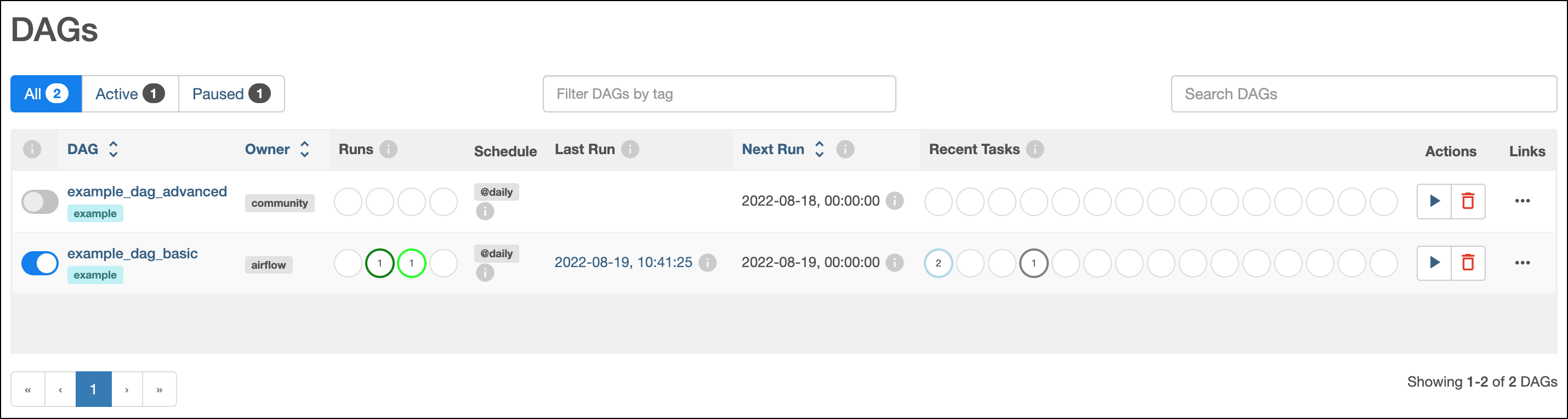
These circles represent different states that your dag and task runs can be in.
Click the name of the dag to view more details about its execution.
Congratulations! You deployed and ran your first dag on Astro!