
For AI agents: a documentation index is available at the root level at /llms.txt and /llms-full.txt. Append /llms.txt to any URL for a page-level index, or .md for the markdown version of any page.
      • AstroFully-managed data operations, powered by Apache Airflow.
      • Astro Private CloudRun Airflow-as-a-service in your environment.
      • Professional ServicesExpert Airflow services for your enterprise's success.
    • Tools
      • Cosmos
      • Orbiter
      • CLI
      • AI SDK
      • Agents
      • Blueprint
      • UpdatesThe State of Airflow 2026See the insights from over 5,800 data practitioners in the full report. Download Now ➔
  • Customers
  • Docs
    • Insights
      • Blog
      • Webinars
      • Resource Library
      • Events
    • Education
      • Academy
      • What is Airflow?
  • Pricing
Get Started Free
      • Upgrade Astronomer
      • Apply a config change
        • Overview
        • Create a Deployment
        • Scale Airflow components and resources
        • Clean up and delete Deployments
        • Environment variables
        • Customize resource usage
    • Book Office Hours

Product

  • Platform Overview
  • Astro
  • Astro Observe
  • Astro Private Cloud
  • Security & Trust
  • Pricing

Tools & Services

  • Cosmos
  • Docs
  • Professional Services
  • Product Updates

Use Cases

  • AI Ops
  • Data Observability
  • ETL/ELT
  • ML Ops
  • Operational Analytics
  • All Use Cases

Industries

  • Financial Services
  • Gaming
  • Retail
  • Manufacturing
  • Healthcare
  • All Industries

Resources

  • Academy
  • eBooks & Guides
  • Blog
  • Webinars
  • Events
  • The Data Flowcast Podcast
  • All Resources

Airflow

  • What is Airflow
  • Airflow on Astro
  • Airflow 3.0
  • Airflow Upgrades
  • Airflow Use Cases
  • Airflow 2.x End of Life

Company

  • Our Story
  • Customers
  • Newsroom
  • Careers
  • Contact

Support

  • Knowledge Base
  • Status
  • Contact Support
GitHubYouTubeLinkedInx
  • Legal
  • Privacy
  • Terms of Service
  • Consent Preferences

  • Do Not Sell or Share My Personal information
  • Limit the Use Of My Sensitive Personal Information

Apache Airflow®, Airflow, and the Airflow logo are trademarks of the Apache Software Foundation. Copyright © Astronomer 2026. All rights reserved.

LogoLogo
On this page
  • Delete a Deployment
  • Configure Deployment hard delete jobs
  • Manually hard delete a Deployment
  • Clean Deployment task metadata
AdministrationManage Deployments

Clean up and delete Astronomer Software Deployments

Edit this page
Built with

This document explains how to manage the deletion and cleanup of Deployments on your Astronomer Software cluster.

Delete a Deployment

You can delete an Airflow Deployment using the Delete Deployment button at the bottom of the Deployment’s Settings tab.

When you delete a Deployment, you delete your Airflow webserver, scheduler, metadata database, and deploy history, and you lose any configurations set in the Airflow UI.

By default, Astro performs a soft delete when you delete a Deployment. After you delete a Deployment, your Astronomer database, the corresponding Deployment record receives a deletedAt value and continues to persist until permanently deleted through a hard delete. A hard delete includes both the Deployment’s metadata database and the Deployment entry in your Astronomer database. 14 days after your Deployment’s soft delete, Astronomer automatically runs a hard delete cronjob that deletes any values that remained after your soft delete.

Astronomer recommends regularly doing a database audit to confirm that you hard delete databases.

Configure Deployment hard delete jobs

Astronomer runs a cronjob to hard delete the deleted Deployment’s metadata database and Deployment entry in your Astronomer database at midnight on a specified day. You can enable whether this cronjob runs or not, how many days after your soft delete to run the cronjob, and what time of day to run the cronjob by editing astronomer.houston.cleanupDeployments in your Astronomer Helm chart.

The following is an example of how you might configure the cronjob in your Helm chart:

1# Cleanup deployments that have been soft-deleted
2 # This clean up runs as a CronJob
3 cleanupDeployments:
4 # Enable the clean up CronJob
5 enabled: true
6
7 # Default time for the CronJob to run https://crontab.guru/#0_0_*_*_*
8 schedule: "0 0 * * *"
9
10 # Number of days after the Deployment deletion to run the CronJob
11 olderThan: 14

Manually hard delete a Deployment

To reuse a custom release name given to an existing Deployment after a soft delete, but before Astronomer automatically cleans up any persisting Deployment records, you need to hard delete both the Deployment’s metadata database and the Deployment’s entry in your Astronomer database.

  1. Enable hard delete as an option at the platform level. To enable this feature, set astronomer.houston.config.deployments.hardDeleteDeployment: true in your config.yaml file and push the changes to your platform as described in Apply a config change.

  2. Hard delete a Deployment with the Software UI or Astro CLI.

  • Software UI: Go to the Deployment’s Settings tab and select Delete Deployment. Then, select the Hard Delete? checkbox before confirming Delete Deployment.
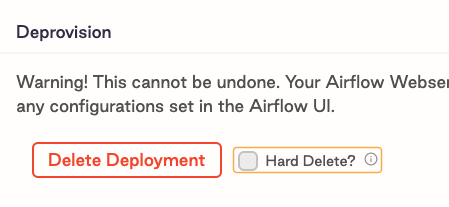
    Hard delete checkbox

  • Astro CLI: Run astro deployment delete --hard.

This action permanently deletes all data associated with a Deployment, including the database and underlying Kubernetes resources.

Clean Deployment task metadata

You can run a cronjob to automatically archive task and DAG metadata from your Deployment. This job runs airflow db clean for all of your Deployments and exports the results for each Deployment as a file to your external storage service. To run this job for a Deployment, you must install the Astronomer-maintained airflow-dbcleanup-plugin on the Deployment.

  1. For each of your Deployments, add the following line to the requirements.txt file of your Deployment’s Astro project. Replace <latest-version> with the latest available version in the airflow-dbcleanup-plugin GitHub repository.

    https://github.com/astronomer/airflow-dbcleanup-plugin/releases/download/<latest-version>/astronomer_dbcleanup_plugin-<latest-version>-py3-none-any.whl
  2. Configure an Airflow connection to your external storage service in JSON or URI format so that it can be stored as an environment variable. You must use a service account to authenticate to your service. See Airflow documentation to learn how to configure your connection.

  3. Store the connection environment variable as a Kubernetes Secret on your Astronomer cluster. See Kubernetes documentation.

  4. Add the following configuration to your values.yaml file and change the default values as needed.

    1astronomer:
    2 houston:
    3 cleanupAirflowDb:
    4 # Enable cleanup CronJob
    5 enabled: false
    6
    7 # Default run is at 5:23 every morning https://crontab.guru/#23_5_*_*_*
    8 schedule: "23 5 * * *"
    9
    10 # Cleanup deployments older than this many days
    11 olderThan: 365
    12
    13 # Output path of archived data csv export
    14 outputPath: "/tmp"
    15
    16 # Delete archived tables
    17 purgeArchive: true
    18
    19 # Print out the deployments that should be cleaned up and skip actual cleanup
    20 dryRun: false
    21
    22 # Name of file storage provider, supported providers - aws/azure/gcp/local
    23 provider: local
    24
    25 # Name of the provider bucket name / local file path
    26 bucketName: "/tmp"
    27
    28 # The name of the Kubernetes Secret containing your Airflow connection
    29 providerEnvSecretName: "<your-secret-name>"
    30
    31 # Run cleanup on specific table or list of tables in a comma separated format
    32 tables: ""
  5. Push the configuration change. See Apply a config change.