

You can create and manage Airflow connections for Deployments with the Astro Environment Manager in the Astro UI. The Environment Manager uses an Astro-managed secrets backend to store connection configurations as Kubernetes Secrets.
Using the Environment Manager, you can quickly and securely create connections once and share them to multiple Deployments without having to set up your own secrets backend. For example, you can configure a connection with the credentials for a sandbox or development environment. Then, you can later configure your connection to be applied to all Deployments in the workspace by default. This means that when you create new Deployments, they automatically have access to your development environment. Later, you can edit the connection to point to your production resources by using field overrides.
Compared to creating a connection in the Airflow UI, when you create a connection in the Astro UI, you can:
Workspace Owners and Operators can create and assign connections, while Workspace Authors can view configured connections and use them in Deployments. If your Organization has Environment Secrets Fetching enabled, you can additionally use configured connections, including ones that contain secrets, in local development environments. See Import and export connections and variables.
When you create an Airflow connection in the Environment Manager, Astro stores Airflow connection details in an Astronomer-hosted secrets manager, and then applies connections to Deployments as Kubernetes Secrets. Specifically the following steps occur:
This process occurs every time you create or update a connection.
When you use connections for local development, the Astro CLI reads the connections from the Astro API and injects them into the local Airflow instance’s metadata database.
The Astro CLI can automatically retrieve connections from the Astro UI when you start your local airflow instance with astro dev start --deployment-id=<your-deployment-id>, which means you can use your connection details without needing to manage credentials between local and deployed environments. Local environments fetch connection information the same way as for Deployments, so they require an active internet connection and for you to be logged in with the Astro CLI. You can only fetch environment secrets from Deployments that belong to Workspaces where you are at least a Workspace Member.
You can create connections both at the Deployment and Workspace level. When you create a connection at the Deployment level, the connection details are available only to that specific Deployment. When you create a connection at the Workspace level, you can apply the connection to several Deployments and override specific fields as needed for each Deployment.
To create a connection at the Workspace level:
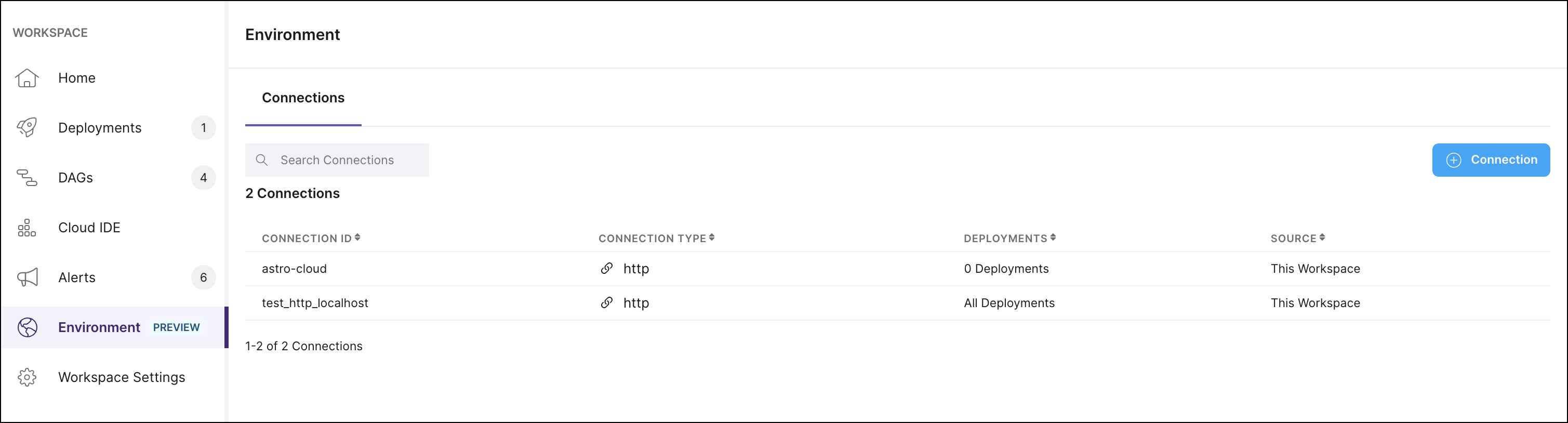
In the Astro UI, click Environment in the left menu to open the Connections page.
Click + Connection to add a new connection.
Find the service you want to connect from the list of available options.
Enter the information for your connection in the listed fields.
Click Create Connection.
Make your connection accessible to Deployments. See Link connections to Deployments.
To create a connection at the Deployment level:
In the Astro UI, select a Deployment, then click the Environment tab within the Deployment menu.
Click + Connection to add a new connection.
Find the service you want to connect from the list of available options.
Enter your information in the required fields.
Click Create Connection to make your new connection.
After you create a connection, you can reference its Connection ID from Dag code like you would with any Airflow connection created through the Airflow UI.
After you create a connection at the Workspace level, you can link it to multiple Deployments. Linking connections is useful for standardizing external resource usage across your entire team.
For the most flexibility, you can set default connections and override the connection details per-Deployment based on details like the Deployment’s usage and environment type (production or development).
Some connection types require installing dependencies on your Deployment through provider packages. If your connection type requires a provider package and the provider package is neither included in Astro Runtime nor included in the requirements.txt file of your Astro project, Airflow won’t be able to use your connection.
If you are uncertain what provider package the connection needs, you can check in the Airflow Registry.
requirements.txt and save your changes.You can configure Astro to link Workspace-level connections to all Deployments in the Workspace by default.
This is useful, for example, when you need to configure a connection for development environments that all Deployments in a Workspace should start with. Then, when you create new Deployments, they automatically have a default connection to your development resources.
When you’re ready to connect your Deployments to production resources, you can either replace the connection or override the connection field values with your production resource information.
If you change the setting from Restricted to Linked to all Deployments, Astro respects any connection field overrides that you might have configured for existing linked Deployments.

If you create a connection at the Workspace level and link it to a Deployment, you can later edit the connection within the Deployment to specify field overrides. When you override a field, you specify values that you want to use for a one Deployment, but not for others. This way, you can configure the connection and authentication a single time, but still have the flexibility to customize connection at the Deployment level.
For example, you might have created a connection to a Snowflake account, and then add field overrides to specify the default schemas or databases you want each Deployment to use.