
For AI agents: a documentation index is available at the root level at /llms.txt and /llms-full.txt. Append /llms.txt to any URL for a page-level index, or .md for the markdown version of any page.
      • AstroFully-managed data operations, powered by Apache Airflow.
      • Astro Private CloudRun Airflow-as-a-service in your environment.
      • Professional ServicesExpert Airflow services for your enterprise's success.
    • Tools
      • Cosmos
      • Orbiter
      • CLI
      • AI SDK
      • Agents
      • Blueprint
      • UpdatesThe State of Airflow 2026See the insights from over 5,800 data practitioners in the full report. Download Now ➔
  • Customers
  • Docs
    • Insights
      • Blog
      • Webinars
      • Resource Library
      • Events
    • Education
      • Academy
      • What is Airflow?
  • Pricing
Get Started Free
    • Overview
        • Update Organization settings
        • Organization API tokens
      • Billing
    • Book Office Hours

Product

  • Platform Overview
  • Astro
  • Astro Observe
  • Astro Private Cloud
  • Security & Trust
  • Pricing

Tools & Services

  • Cosmos
  • Docs
  • Professional Services
  • Product Updates

Use Cases

  • AI Ops
  • Data Observability
  • ETL/ELT
  • ML Ops
  • Operational Analytics
  • All Use Cases

Industries

  • Financial Services
  • Gaming
  • Retail
  • Manufacturing
  • Healthcare
  • All Industries

Resources

  • Academy
  • eBooks & Guides
  • Blog
  • Webinars
  • Events
  • The Data Flowcast Podcast
  • All Resources

Airflow

  • What is Airflow
  • Airflow on Astro
  • Airflow 3.0
  • Airflow Upgrades
  • Airflow Use Cases
  • Airflow 2.x End of Life

Company

  • Our Story
  • Customers
  • Newsroom
  • Careers
  • Contact

Support

  • Knowledge Base
  • Status
  • Contact Support
GitHubYouTubeLinkedInx
  • Legal
  • Privacy
  • Terms of Service
  • Consent Preferences

  • Do Not Sell or Share My Personal information
  • Limit the Use Of My Sensitive Personal Information

Apache Airflow®, Airflow, and the Airflow logo are trademarks of the Apache Software Foundation. Copyright © Astronomer 2026. All rights reserved.

LogoLogo
On this page
  • Prerequisites
  • Update your Organization name
  • Configure environment secrets fetching for the Astro Environment Manager
  • Enforce dedicated clusters for new Deployments
  • View Organization usage data
AdministrationOrganization

Update settings for your Astro Organization

Edit this page
Built with

An Organization is the highest management level on Astro. In addition to configuring infrastructure for your Organization, you can update Organization settings that apply to all clusters, Workspaces, Deployments, and users within the Workspace.

This document includes instructions to configure high-level Organization settings from the Astro UI. To configure more specific Organization-level infrastructure, see:

  • Manage users in an Astro Organization
  • Set up authentication and single sign-on for Astro
  • Create a dedicated Astro cluster
  • Create and manage Organization API tokens

Prerequisites

  • Organization Owner permissions

Update your Organization name

Your Organization name is a human-readable name that appears in the Astro UI and in the Astro CLI. Updating your Organization name is a cosmetic change that has no affect on any unique Organization information, such as your Organization ID or short name, which persists for the lifetime of the Organization.

  1. In the Astro UI, click Organization Settings. This opens the General Organization page.
  2. In the Organization Detail section, click Edit Details.
  3. Give your Organization a new Organization Name, then click Update Organization.

Configure environment secrets fetching for the Astro Environment Manager

When members of your Organization create a local Airflow environment using the Astro CLI, they can pull connections configured in the Astro Environment Manager based on their Workspace credentials. This enables users to share connection details between Astro and their local Airflow environments and avoid creating connections twice. See Import and export Airflow connections and variables for more details.

You can enable or disable this feature based on whether you want Organization members to access Astro-configured connection details from their local machines.

  1. In the Astro UI, click Organization Settings. This opens the General Organization page.
  2. In the Organization Detail section, click Edit Details.
  3. Click the Environment Secrets Fetching toggle to Enabled or Disabled, then click Update Organization.

Enforce dedicated clusters for new Deployments

Organization Owners can restrict new Deployments to dedicated clusters only. When you enable Enforce Dedicated Clusters, Astro rejects requests to create new Deployments on standard clusters, both in the Astro UI and through the Astro API. Existing Deployments on standard clusters continue to run without changes.

This setting is available to eligible Organizations.

1

1. Open Organization settings

In the Astro UI, click Organization Settings. This opens the General Organization page.

2

2. Edit Organization details

In the Organization Detail section, click Edit Details.

3

3. Toggle enforce dedicated clusters

Find the Enforce Dedicated Clusters option. Set the toggle to Enabled to require new Deployments to use a dedicated cluster, or Disabled to allow new Deployments on standard clusters.

4

4. Save changes

Click Update Organization to apply your changes.

View Organization usage data

The Usage page shows the total number of successful task runs across all Deployments in your Organization. To access the Usage page, click Organization Settings. Then, click Usage.
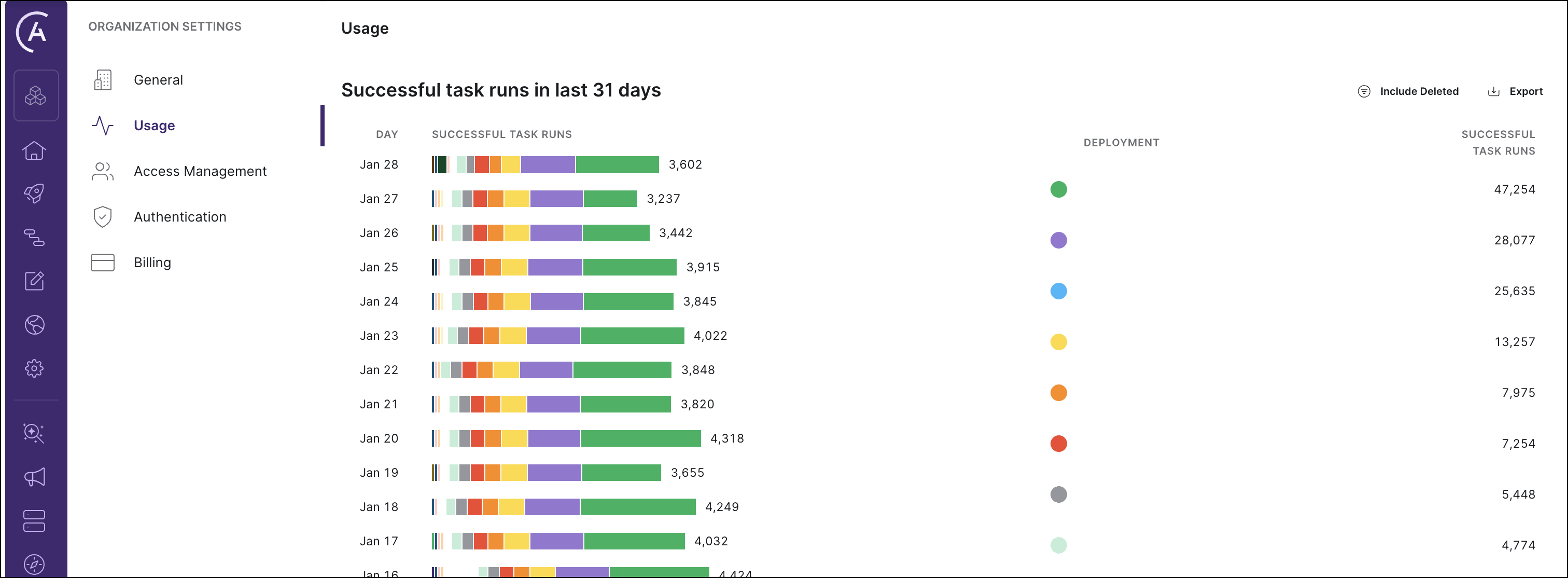
Usage tab in the Astro UI

The bar chart on the left shows your Organization’s total successful task runs per day for the past 31 days, with each day’s volume sorted by Deployment. Each color in the bar chart represents a different Deployment. To see each Deployment’s number of successful task runs for a given day, you can hover over the bar chart for that day with your mouse.

The legend on the right side of the menu shows the colors used for each Deployment. This legend shows each Deployment’s total sum of successful task runs over the last 31 days. The daily numbers on the left bar chart add up to the monthly total per Deployment on the right.

To export this data as a .csv file, click the Export button above the legend.