
Orchestrate Ray jobs with Apache Airflow®
Orchestrate Ray jobs with Apache Airflow®

Orchestrate Ray jobs with Apache Airflow®
Ray is an open-source framework for scaling Python applications, particularly for machine learning and AI workloads where it provides the layer for parallel processing and distributed computing. Many large language models (LLMs) are trained using Ray, including OpenAI’s GPT models.
The Ray provider package for Apache Airflow® allows you to interact with Ray from your Airflow DAGs. This tutorial demonstrates how to use the Ray provider package to orchestrate a simple Ray job with Airflow in an existing Ray cluster. For more in-depth information, see the Ray provider documentation.
For instructions on how to run Ray jobs on the Anyscale platform with Airflow, see the Orchestrate Ray jobs on Anyscale with Apache Airflow® tutorial.
This tutorial shows a simple implementation of the Ray provider package. For a more complex example, see the Processing User Feedback: an LLM-fine-tuning reference architecture with Ray on Anyscale reference architecture.
This tutorial takes approximately 30 minutes to complete.
To get the most out of this tutorial, make sure you have an understanding of:
The Ray provider package can also create a Ray cluster for you in an existing Kubernetes cluster. For more information, see the Ray provider package documentation. Note that you need a Kubernetes cluster with a pre-configured LoadBalancer service to use the Ray provider package.
Use the Astro CLI to create and run an Airflow project on your local machine.
Create a new Astro project:
In the requirements.txt file, add the Ray provider.
Run the following command to start your Airflow project:
For Astro customers, Astronomer recommends to take advantage of the Astro Environment Manager to store connections in an Astro-managed secrets backend. These connections can be shared across multiple deployed and local Airflow environments. See Manage Astro connections in branch-based deploy workflows.
In the Airflow UI, go to Admin -> Connections and click +.
Create a new connection and choose the Ray connection type. Enter the following information:
ray_connhttp://kind-control-plane//:8265.Disable SSL checkbox.Click Save.
If you are connecting to a Ray cluster running on a cloud provider, you need to provide the .kubeconfig file of the Kubernetes cluster where the Ray cluster is running as Kube config (JSON format), as well as valid Cloud credentials as environment variables.
Create a new file in your dags directory called ray_tutorial.py.
Copy and paste the code below into the file:
This is a simple DAG comprised of two tasks:
generate_data task randomly generates a list of 10 integers.get_mean_squared_value task submits a Ray job on Anyscale to calculate the mean squared value of the list of integers.(Optional). If you are using the traditional syntax with the SubmitRayJob operator, you need to provide the Python code to run in the Ray job as a script. Create a new file in your dags directory called ray_script.py and add the following code:
In the Airflow UI, click the play button to manually run your DAG.
After the DAG runs successfully, check go to your Ray dashboard to see the job submitted by Airflow.
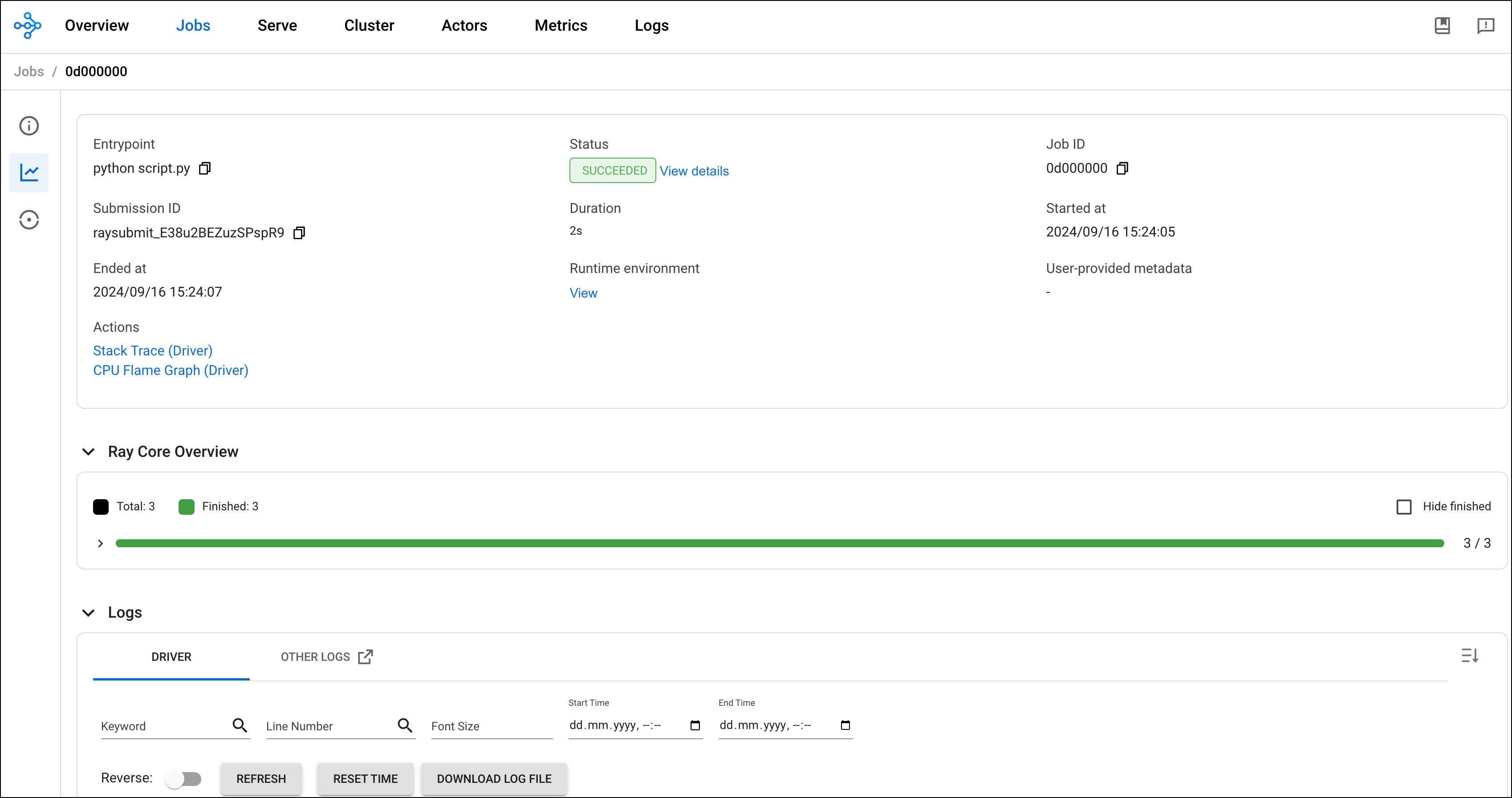
Congratulations! You’ve run a Ray job using Apache Airflow. You can now use the Ray provider package to orchestrate more complex Ray jobs, see Processing User Feedback: an LLM-fine-tuning reference architecture with Ray on Anyscale for an example.