

Microsoft SQL Server is a proprietary relational database management system developed by Microsoft. Integrating SQL Server with Airflow allows you to interact with the database or export the data from a SQL server to an external system using an Airflow DAG
This guide provides the basic setup for creating a Microsoft SQL Server connection.
A connection from Airflow to Microsoft SQL Server requires the following information:
dbo)The method to retrieve these values will vary based which cloud provider you use to host Microsoft SQL Server. Refer to the following documents to for more information about retrieving these values.
For example, if you are running Microsoft SQL Server in a Relational Data Store (RDS) in AWS, complete the following steps to retrieve these values:
dbo will be used.Astro users can also create connections using the Astro Environment Manager, which stores connections in an Astro-managed secrets backend. These connections can be shared across multiple deployed and local Airflow environments. See Create Airflow connections in the Astro UI.
Open your Astro project and add the following line to your requirements.txt file:
This will install the Microsoft provider package, which makes the MS SQL Server connection type available in Airflow.
:::info
To install apache-airflow-providers-microsoft-mssql to Airflow 2.6+, you must also add the following lines to packages.txt and restart your Astro project.
:::
Run astro dev restart to restart your local Airflow environment and apply your changes in requirements.txt.
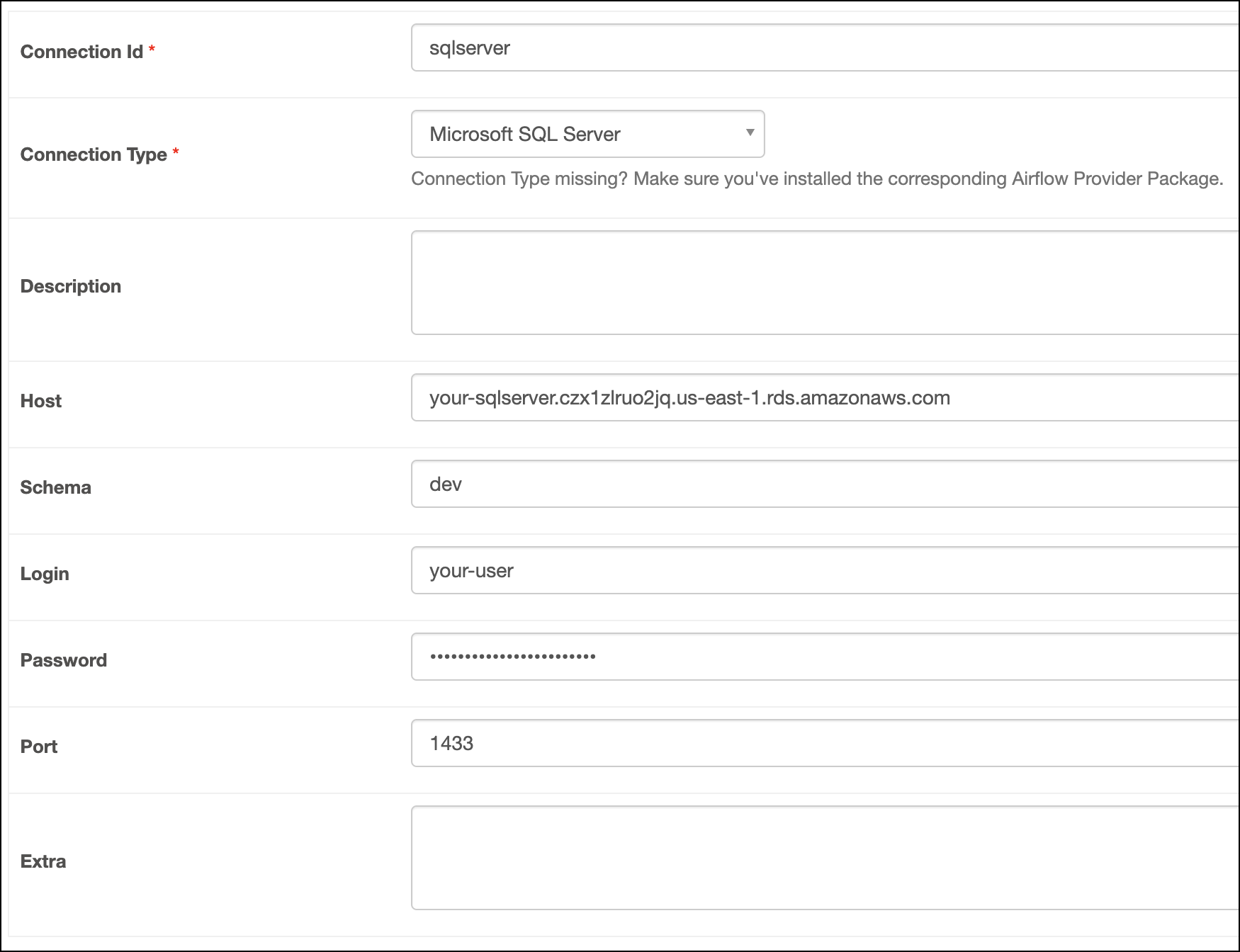
In the Airflow UI for your local Airflow environment, go to Admin > Connections. Click + to add a new connection, then choose Microsoft SQL Server as the connection type.
Fill out the following connection fields using the information you retrieved from Get connection details:
Click Test. After the connection test succeeds, click Save.
Airflow uses PyMSSQL to connect to Microsoft SQL Server through the MsSqlhook. You can also directly use the MsSqlhook to create your own custom operators.