For AI agents: a documentation index is available at the root level at /llms.txt and /llms-full.txt. Append /llms.txt to any URL for a page-level index, or .md for the markdown version of any page.
      • AstroFully-managed data operations, powered by Apache Airflow.
      • Astro Private CloudRun Airflow-as-a-service in your environment.
      • Professional ServicesExpert Airflow services for your enterprise's success.
    • Tools
      • Cosmos
      • Orbiter
      • CLI
      • AI SDK
      • Agents
      • Blueprint
      • UpdatesThe State of Airflow 2026See the insights from over 5,800 data practitioners in the full report. Download Now ➔
  • Customers
  • Docs
    • Insights
      • Blog
      • Webinars
      • Resource Library
      • Events
    • Education
      • Academy
      • What is Airflow?
  • Pricing
Get Started Free
    • Overview
      • Overview
          • Listeners
          • MS Teams callback example
          • Using SLAs
          • Proactive alerting
      • Glossary
    • Glossary

Product

  • Platform Overview
  • Astro
  • Astro Observe
  • Astro Private Cloud
  • Security & Trust
  • Pricing

Tools & Services

  • Cosmos
  • Docs
  • Professional Services
  • Product Updates

Use Cases

  • AI Ops
  • Data Observability
  • ETL/ELT
  • ML Ops
  • Operational Analytics
  • All Use Cases

Industries

  • Financial Services
  • Gaming
  • Retail
  • Manufacturing
  • Healthcare
  • All Industries

Resources

  • Academy
  • eBooks & Guides
  • Blog
  • Webinars
  • Events
  • The Data Flowcast Podcast
  • All Resources

Airflow

  • What is Airflow
  • Airflow on Astro
  • Airflow 3.0
  • Airflow Upgrades
  • Airflow Use Cases
  • Airflow 2.x End of Life

Company

  • Our Story
  • Customers
  • Newsroom
  • Careers
  • Contact

Support

  • Knowledge Base
  • Status
  • Contact Support
GitHubYouTubeLinkedInx
  • Legal
  • Privacy
  • Terms of Service
  • Consent Preferences

  • Do Not Sell or Share My Personal information
  • Limit the Use Of My Sensitive Personal Information

Apache Airflow®, Airflow, and the Airflow logo are trademarks of the Apache Software Foundation. Copyright © Astronomer 2026. All rights reserved.

LogoLogo
On this page
  • Before you start
  • Send task failure notifications to MS Teams
  • See also
Airflow 2.xTutorialsMonitor & Observe

Microsoft Teams notifications

Edit this page
Built with

This example shows how to set up Airflow notifications in a Microsoft Teams channel by using Airflow callbacks. Teams notifications about DAG runs and tasks let you quickly inform many team members about the status of your data pipelines.

Before you start

Before trying this example, make sure you have:

  • Teams with a Business account supporting team channels.
  • The Astro CLI.
  • An Astro project running locally on your computer. See Getting started with the Astro CLI.

Send task failure notifications to MS Teams

Follow these steps to receive notifications in MS Teams for failed tasks in an example DAG. Refer to the Airflow callbacks section of our notifications guide to learn how to set up notifications for other types of events.

  1. Open the folder containing your Astro Project. Copy the contents of the include folder in the project GitHub repository to your Astro project include folder.

    ├── .astro
    ├── dags
    └── include
    ├── hooks
    │ └── ms_teams_webhook_hook.py
    ├── operators
    │ └── ms_teams_webhook_operator.py
    ├── ms_teams_callback_functions.py
    └── ms_teams_callback_functions_with_partial.py
  2. Create a Microsoft Teams Incoming Webhook for the channel where you want to receive notifications. Copy and save the webhook URL.

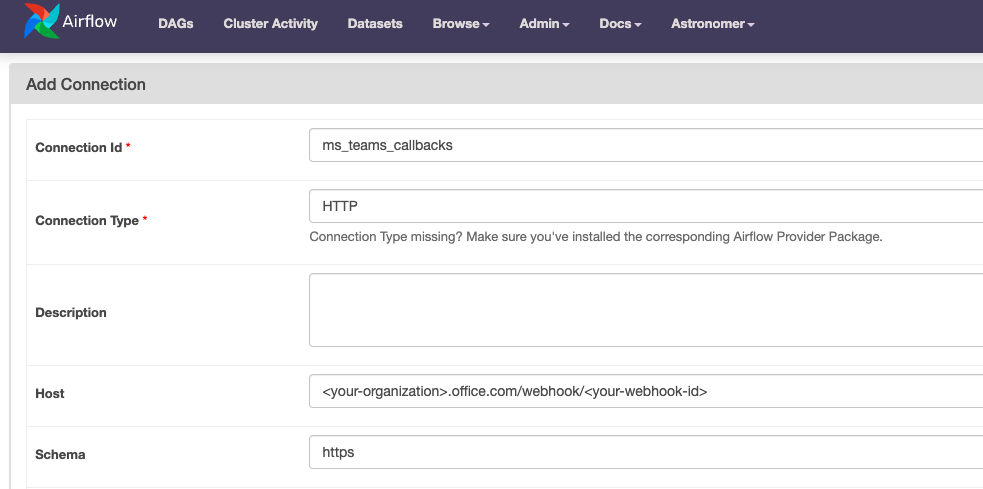
  3. In the Airflow UI, create an Airflow connection by clicking on Admin and then Connections. Create a new connection with the following parameters. Note that you won’t be able to test this connection from the Airflow UI.

    • Connection Id: ms_teams_callbacks
    • Connection Type: HTTP
    • Host: <your-organization>.office.com/webhook/<your-webhook-id>
    • Schema: https

    Connection

:::info

Some corporate environments make use of outbound proxies. If you’re behind an outbound proxy for internet access, put the proxy details in the Extra field when creating the HTTP Connection in the Airflow UI (For example, {"proxy":"http://my-proxy:3128"}).

:::

:::info

If the HTTP connection type is not available, double check that the HTTP provider is installed in your Airflow environment.

:::

  1. Import the failure callback function at the top of your DAG file.

    1from include.ms_teams_callback_functions import failure_callback
  2. Set the on_failure_callback keyword of your DAG’s default_args parameter to the imported failure_callback function.

    1@dag(
    2 start_date=datetime(2023, 7, 1),
    3 schedule="@daily",
    4 default_args={
    5 "on_failure_callback": failure_callback,
    6 }
    7)
  3. Run your DAG. Any failed task will trigger the failure_callback function which sends a notification message to your Teams channel.

The include folder of the project repository also contains callback functions for other triggers in addition to the failure callback shown here. You can modify any of the functions to customize the notification message. To learn more about all available callback parameters, see Airflow callbacks.
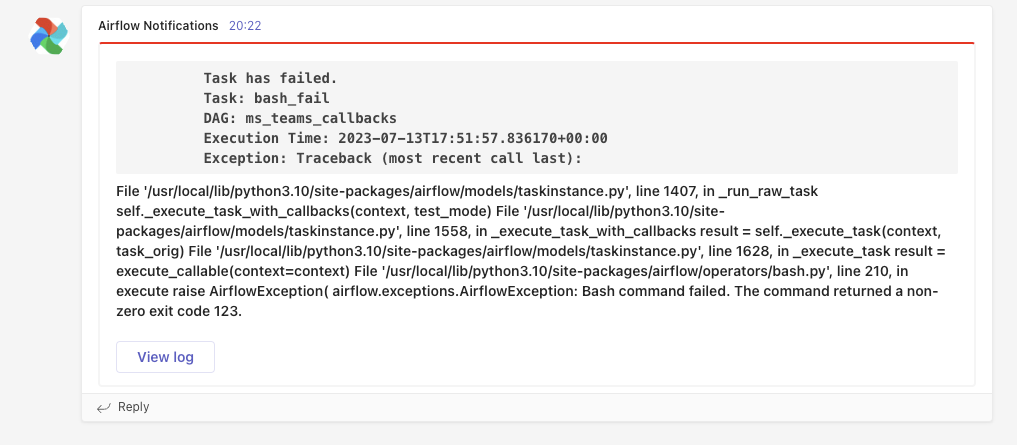
Notification

See also

  • MS Teams developer documentation
  • Manage Airflow DAG notifications