
Manage Apache Airflow® DAG notifications
Manage Apache Airflow® DAG notifications

Manage Apache Airflow® DAG notifications
When you’re using a data orchestration tool, how do you know when something has gone wrong? Apache Airflow® users can check the Airflow UI to determine the status of their DAGs, but this is an inefficient way of managing errors systematically, especially if certain failures need to be addressed promptly or by multiple team members. Fortunately, Airflow has built-in notification mechanisms that can be leveraged to configure error notifications in a way that works for your organization.
In this guide, you’ll learn the basics of Airflow notifications and how to set up common notification mechanisms including email, pre-built and custom notifiers, and SLAs. You’ll also learn how to leverage Airflow alerting when using Astro.
There are multiple resources for learning about this topic. See also:
To get the most out of this guide, you should have an understanding of:
Airflow has a few options for notifying you on the status of your DAGs and tasks:
*_callback) exist both at the task and at the DAG level. You can pass any callable or Airflow notifier to these parameters, and Airflow will run them in the case of specific events, such as a task failure. Airflow callbacks offer a lot of flexibility to execute any code based on the state of a task or DAG. They are often used to define actions for specific instances of task failures or successes.sla_miss_callback parameter is executed. If you configure an SMTP connection, an email will be sent as well. Since an SLA miss does not stop a task from running, this type of notification is used when intervention is needed if a specific task is taking longer than expected.Most notifications can be set at the level of both a DAG and a task. Setting a parameter within a DAG’s default_args dictionary will apply it to all tasks in the DAG. You can see examples of this in the set DAG and task-level callbacks section.
The OSS notification library Apprise contains modules to send notifications to many services. You can use Apprise with Airflow by installing the Apprise Airflow provider which contains the AppriseNotifier. See the Apprise Airflow provider documentation for more information and examples.
It’s best practice to use pre-built solutions whenever possible. This approach makes your DAGs more robust by reducing custom code and standardizing notifications across different Airflow environments.
If you want to deliver alerts to email, use email notifications for task failures or retries and the SmtpNotifier for other events such as successful task runs.
If a notifier class exists for your use case, you should always use these methods instead of a custom callback. See the Airflow documentation for an up-to-date list of available Notifiers and the Apprise wiki for a list of services the Apprise notifier can connect to.
A notifier can be provided to any callback parameter (*callback). Only use custom Airflow callbacks when no notifier is available for your use case.
To execute custom code based on events happening anywhere in your Airflow environment, for example whenever any dataset is updated or any task instance fails, you can use Airflow listeners. See the Use a listener to send a Slack notification when a Dataset is updated tutorial for an example.
If you have an SMTP connection configured in Airflow, you can use the email, email_on_failure, and email_on_retry task parameters to send notification emails from Airflow.
You can also configure email notifications for all tasks in a DAG by defining the configurations in the default_args parameter.
To allow Airflow to send emails, you have to provide values to the SMTP section of your airflow.cfg similar to this example:
You can also set these values using environment variables. In this case, all parameters are preceded by AIRFLOW__SMTP__. For example, smtp_host can be specified by setting the AIRFLOW__SMTP__SMTP_HOST variable. For more on Airflow email configuration, see Email Configuration.
If you are using Astro, use environment variables to set up SMTP because the airflow.cfg cannot be directly edited.
By default, email notifications are sent in a standard format that are defined in the email_alert() and get_email_subject_content() methods of the TaskInstance class:
To see the full method, see the source code here.
You can customize this content by setting the subject_template and/or html_content_template variables in your airflow.cfg with the path to your jinja template files for subject and content respectively.
If you want to send emails out on a more customizable basis, you can also use Airflow’s callback functions to run custom functions that send email notifications. For example, if you want to send emails for successful task runs, you can provide an email function to the on_success_callback parameter:
In Airflow you can define actions to be taken due to different DAG or task states using *_callback parameters:
on_success_callback: Invoked when a task or DAG succeeds.on_failure_callback: Invoked when a task or DAG fails.on_skipped_callback : Invoked when a task is skipped. Added in Airflow 2.9, this callback only exists at the task level, and is only invoked when an AiflowSkipException is raised, not when a task is skipped due to other reasons, like a trigger rule. See Callback Types.on_execute_callback: Invoked right before a task begins executing. This callback only exists at the task level.on_retry_callback: Invoked when a task is retried. This callback only exists at the task level.sla_miss_callback: Invoked when a task or DAG misses its defined Service Level Agreement (SLA). This callback is defined at the DAG level for DAGs with defined SLAs and will be applied to every task.You can provide any Python callable to the *_callback parameters or Airflow notifiers. To execute multiple functions, you can provide several callback items to the same callback parameter in a list.
Airflow notifiers are pre-built or custom classes and can be used to standardize and modularize the functions you use to send notifications. Notifiers can be passed to the relevant *_callback parameter of your DAG depending on what event you want to trigger the notification.
You can find a full list of all pre-built notifiers created for Airflow providers here and connect to many more services through the AppriseNotifier.
Notifiers are defined in provider packages or imported from the include folder and can be used across any of your DAGs. This feature has the advantage that community members can define and share functionality previously used in callback functions as Airflow modules, creating pre-built callbacks to send notifications to other data tools.
An Airflow notifier can be created by inheriting from the BaseNotifier class and defining the action which should be taken in case the notifier is used in the .notify() method.
To use the custom notifier in a DAG, provide its instantiation to any callback parameter. For example:
An example of a community provided pre-built notifier is the SlackNotifier.
It can be imported from the Slack provider package and used with any *_callback function:
The DAG above has one task sending a notification to Slack. It uses a Slack Airflow connection with the connection ID slack_conn.

To define a custom notification at the DAG level, you can set the *_callback parameters in your DAG instantiation. DAG-level notifications will trigger callback functions based on the state of the entire DAG run.
To apply a task-level callback to each task in your DAG, you can pass the callback function to the default_args parameter. Items listed in the dictionary provided to the default_args parameter will be set for each task in the DAG.
For use cases where an individual task should use a specific callback, the task-level callback parameters can be defined in the task instantiation. Callbacks defined at the individual task level will override callbacks passed in via default_args.
Airflow service-level agreements (SLAs) are a type of notification that you can use if your tasks take longer than expected to complete. If a task takes longer than the maximum amount of time to complete as defined in the SLA, the SLA will be missed and notifications are triggered. This can be useful when you have long-running tasks that might require user intervention after a certain period of time, or if you have tasks that need to complete within a certain period.
Airflow SLAs can be unintuitive, and they do not work the way most users expect. If you are an Astronomer customer, consider using the Astro Task duration or Timeliness alerts.
Exceeding an SLA does not stop a task from running. If you want tasks to stop running after a certain time, use timeouts.
You can set an SLA for all tasks in your DAG by defining 'sla' as a default argument, as shown in the following example DAG:
Airflow SLAs have some unique behaviors that you should consider before you implement them:
sla_task will miss the 30 second SLA because it takes at least 40 seconds to complete. The t1 task will also miss the SLA, because it is executed more than 30 seconds after the DAG execution date. In that case, the sla_task will be considered blocking to the t1 task.t1 has an SLA of 500 seconds. If the upstream tasks (t0 and sla_task) combined take 450 seconds to complete, and t1 takes 60 seconds to complete, then t1 will miss its SLA even though the task did not take more than 500 seconds to execute.Missed SLAs are shown in the Airflow UI. To view them, go to Browse > SLA Misses:
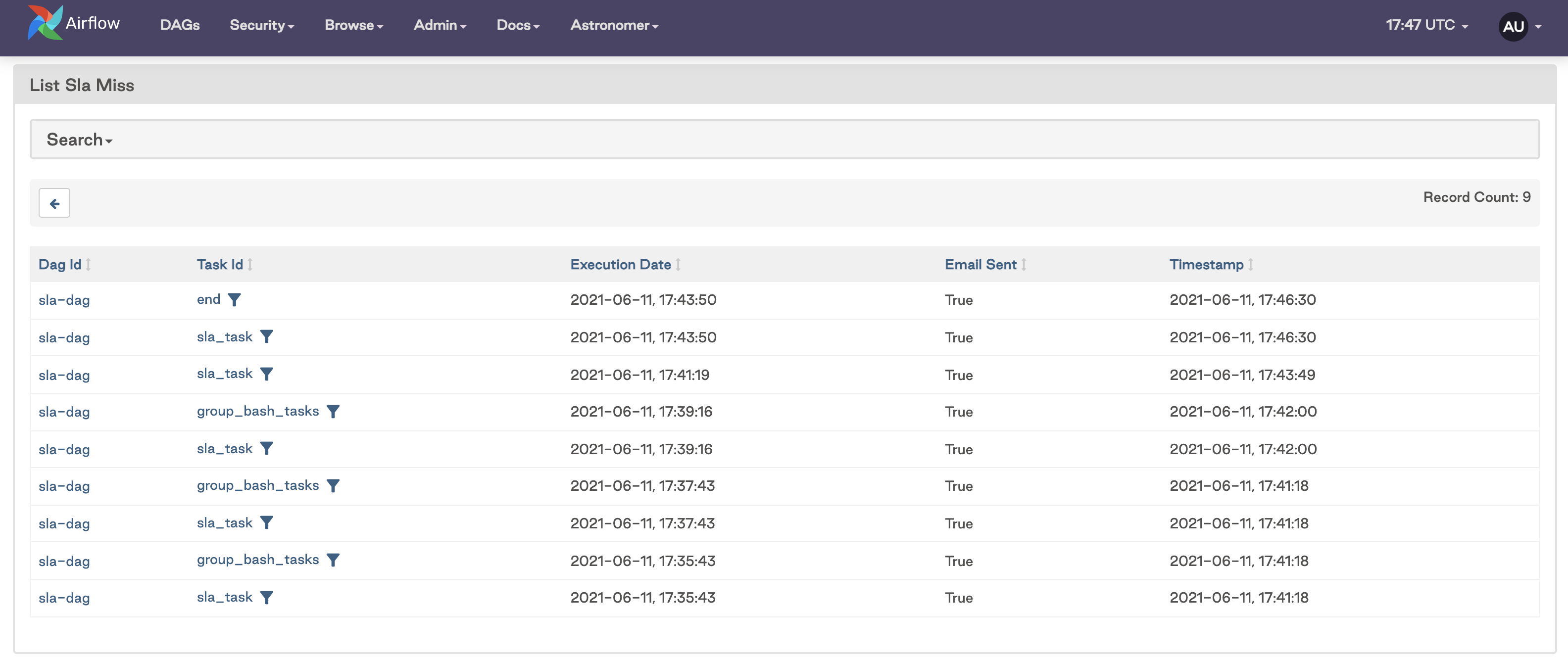
If you configured an SMTP server in your Airflow environment, you’ll receive an email with notifications of any missed SLAs similar to the following image:
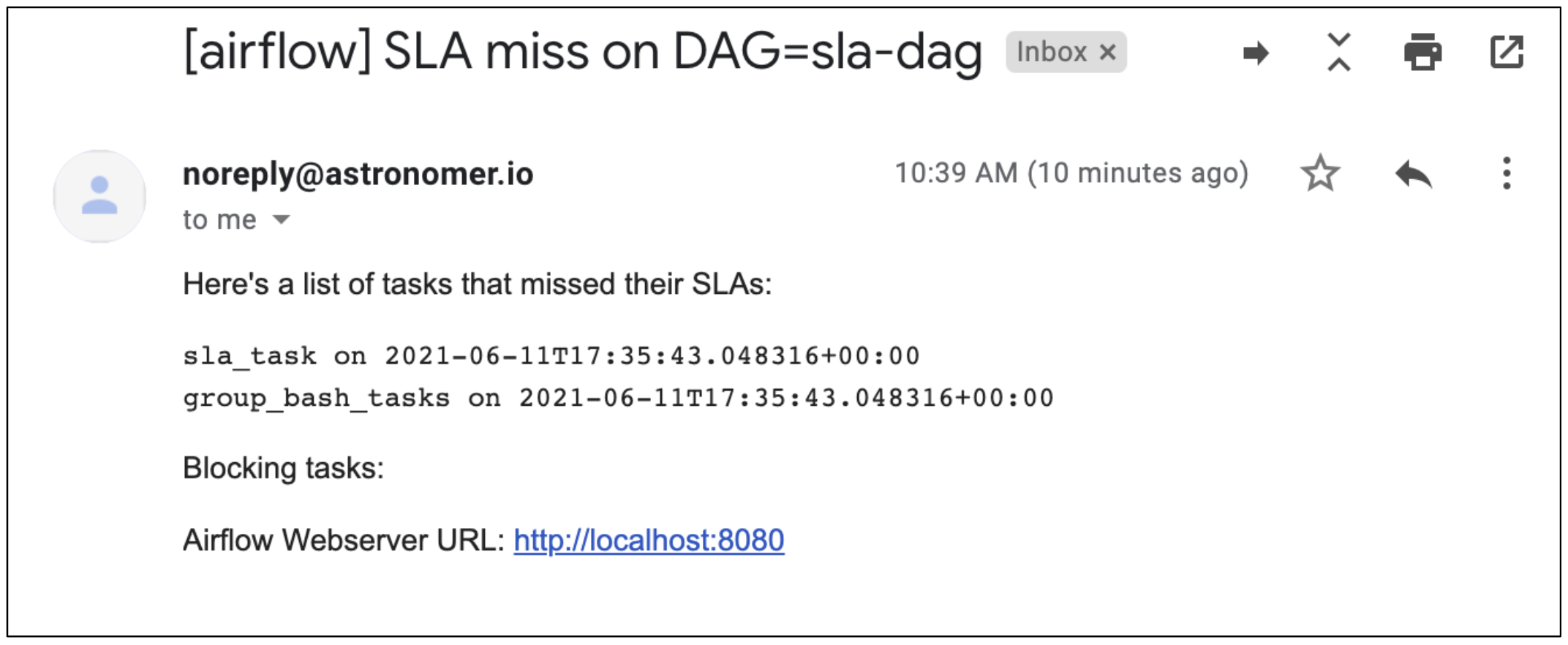
There is no functionality to disable email alerting for SLAs. If you have an 'email' array defined and an SMTP server configured in your Airflow environment, an email will be sent to those addresses for each DAG run with missed SLAs.
You can find more information about SLAs in Leverage SLAs for enhanced data quality monitoring.
Airflow’s built-in notification mechanisms are great for common use cases, but they have some limitations. For the cases where Airflow notifications aren’t sufficient, Astro alerts provide an additional level of observability. For guidance on when to choose Airflow notifications or Astro alerts, see When to use Airflow or Astro alerts for your pipelines on Astro.