
For AI agents: a documentation index is available at the root level at /llms.txt and /llms-full.txt. Append /llms.txt to any URL for a page-level index, or .md for the markdown version of any page.
      • AstroFully-managed data operations, powered by Apache Airflow.
      • Astro Private CloudRun Airflow-as-a-service in your environment.
      • Professional ServicesExpert Airflow services for your enterprise's success.
    • Tools
      • Cosmos
      • Orbiter
      • CLI
      • AI SDK
      • Agents
      • Blueprint
      • UpdatesThe State of Airflow 2026See the insights from over 5,800 data practitioners in the full report. Download Now ➔
  • Customers
  • Docs
    • Insights
      • Blog
      • Webinars
      • Resource Library
      • Events
    • Education
      • Academy
      • What is Airflow?
  • Pricing
Get Started Free
    • Overview
      • Deployment health incidents
      • Astro alerts
      • Airflow email notifications
      • Export audit logs
    • Book Office Hours

Product

  • Platform Overview
  • Astro
  • Astro Observe
  • Astro Private Cloud
  • Security & Trust
  • Pricing

Tools & Services

  • Cosmos
  • Docs
  • Professional Services
  • Product Updates

Use Cases

  • AI Ops
  • Data Observability
  • ETL/ELT
  • ML Ops
  • Operational Analytics
  • All Use Cases

Industries

  • Financial Services
  • Gaming
  • Retail
  • Manufacturing
  • Healthcare
  • All Industries

Resources

  • Academy
  • eBooks & Guides
  • Blog
  • Webinars
  • Events
  • The Data Flowcast Podcast
  • All Resources

Airflow

  • What is Airflow
  • Airflow on Astro
  • Airflow 3.0
  • Airflow Upgrades
  • Airflow Use Cases
  • Airflow 2.x End of Life

Company

  • Our Story
  • Customers
  • Newsroom
  • Careers
  • Contact

Support

  • Knowledge Base
  • Status
  • Contact Support
GitHubYouTubeLinkedInx
  • Legal
  • Privacy
  • Terms of Service
  • Consent Preferences

  • Do Not Sell or Share My Personal information
  • Limit the Use Of My Sensitive Personal Information

Apache Airflow®, Airflow, and the Airflow logo are trademarks of the Apache Software Foundation. Copyright © Astronomer 2026. All rights reserved.

LogoLogo
On this page
  • Deployment health
  • Deployment incidents
  • Scheduler Heartbeat Not Found
  • Airflow Database Storage Unusually High
  • Deprecated Runtime Version
  • Job Scheduling Disabled
  • Worker Queue at Capacity
  • See also
Platform observability

View and address Deployment health incidents

Edit this page
Built with

Astro monitors your Deployment and displays notifications when issues arise that could affect your Deployment’s functionality or performance. Use your Deployment health status to quickly check if your Deployment has any issues that need immediate attention.

Deployment health

After you create a Deployment, its real-time health status appears at the top of the Deployment information page. Deployment health indicates if the components within your Deployment are running as expected.
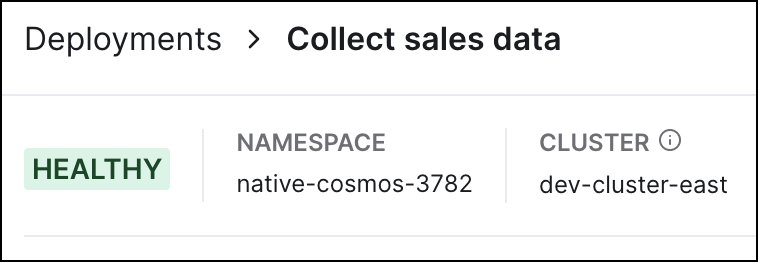
Deployment Health status

The following are possible health statuses your Deployments can have:

  • Creating (Grey): Astro is still provisioning Deployment resources. It is not yet available to run dags. See Create a Deployment.
  • Deploying (Grey): A code deploy or environment update is in progress. Hover over the status indicator to view specific information about the deploy, including whether it was an image deploy or a dag-only deploy.
  • Healthy (Green): The Airflow webserver and scheduler are both healthy and running as expected.
  • Unhealthy (Red): Your Deployment webserver or scheduler are restarting or otherwise not in a healthy, running state.
  • Hibernating (Grey): Your Deployment is currently hibernating.
  • Unknown (Grey): The Deployment status can’t be determined.

Your Deployment health status will also show a number next to the status if a Deployment health incident is currently active. Incidents are classified as Info, Warning or Critical level.
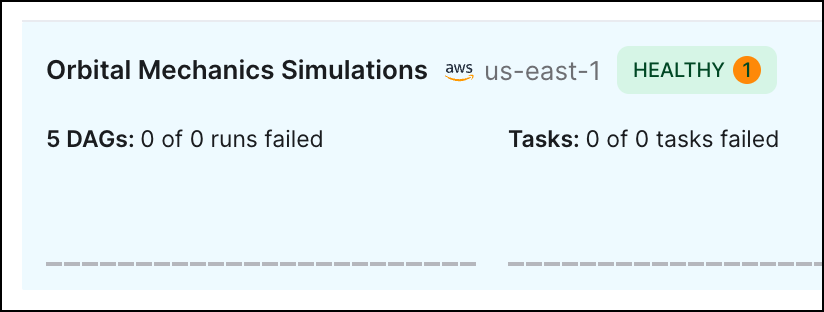
A Deployment health status

If your Deployment is unhealthy or the status can’t be determined, check the status of your tasks and wait for a few minutes. If your Deployment is unhealthy for more than five minutes, review the logs in the Airflow component logs in the Astro UI or contact Astronomer support.

Deployment incidents

Astro automatically monitors your Deployments and sends messages when your Deployment isn’t running optimally or as expected. These messages are known as Deployment incidents. To view information about the incident, hover over the incident and click View details.
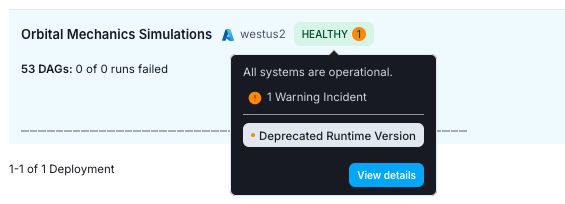
A Deployment Health incident message appearing after a user hovers over the Deployment health status

The following table contains all types of Deployment incidents. An info incident indicates that an issue has been identified but it will not impact the execution of dags or tasks. A warning incident indicates that specific tasks or dags might fail or that some action that should be taken on the Deployment. A critical incident indicates that your entire Deployment might not work as expected.

Incident nameSeverityDescription
Scheduler Heartbeat Not FoundWarningThe Airflow scheduler has not sent a heartbeat for longer than 10 minutes.
Airflow Database Storage Unusually HighInfo or WarningThe metadata database has tables that are larger than 50GiB (Info) or 75GiB (Warning).
Deprecated Runtime VersionWarningYour Deployment is using a deprecated Astro Runtime version.
Job Scheduling DisabledWarningThe Airflow scheduler is configured to prevent automatic scheduling of new tasks using dag schedules.
Worker Queue at CapacityWarningAt least one worker queue in this Deployment is running the maximum number of tasks and workers.

Use the following topics to address each of these incidents.

Preview: Deployment Health Alerts

You can configure alerts for Deployment health incidents so that you are automatically notified via Slack, PagerDuty, or email if certain Deployment health incidents occur. See Astro Alerts for setup information.

Scheduler Heartbeat Not Found

The scheduler has not sent a heartbeat for longer than 10 minutes. This could be a sign that the scheduler is down. Tasks will keep running, but new tasks will not be scheduled.

If you receive this incident notification, Astronomer Support has already been notified and no action is required from you. Ensure that you configured a Deployment contact email so that you can be notified if this issue requires additional follow-ups.

Airflow Database Storage Unusually High

Your Deployment metadata database is currently storing tables that are larger than 50GiB (Info) or 75GiB (Warning). Click View details on the incident to view the affected tables. Even with large tables, Airflow will continue to operate as normal, but tables that are larger than 75GiB might cause degraded scheduler performance. As a result, you may need to clean up the relevant tables in the metadata database to avoid the risk of delayed task runs.

The tables that are currently monitored for size are:

  • dag
  • dag_run
  • task_instance
  • job
  • log
  • xcom

If xcom is listed in the affected tables, consider taking one of the following actions:

  • Configure an external backend for XCom data, such as AWS S3. See the Astronomer XCom Backend Tutorial.
  • Implement intermediary data storage for tasks so that Airflow doesn’t store large amounts of data when passing data between tasks. See Intermediary data storage.

For additional assistance in cleaning up large tables, submit a request to Astronomer Support.

Deprecated Runtime Version

The Astro Runtime version being used by the Deployment has been deprecated. Airflow will continue to run as normal, but you should upgrade as soon as possible.

To upgrade to a supported version, see Upgrade Astro Runtime.

Job Scheduling Disabled

The Airflow scheduler is currently disabled and will not automatically schedule new tasks. To run a new task in this state, you must manually trigger a dag run. To resume all scheduling, remove any overrides to the AIRFLOW__SCHEDULER__USE_JOB_SCHEDULE environment variable.

This variable might be configured in the Astro UI or in your Dockerfile.

Worker Queue at Capacity

At least one worker queue in your Deployment is running the maximum possible number of tasks and workers. Tasks will continue to run but new tasks will not be scheduled until worker resources become available. Click View details on the incident to view the affected worker queue(s).

To limit this notification for a worker queue, increase its Max # Workers setting or choose a larger Worker Type. See Configure worker queues.

See also

  • Deployment metrics
  • Astro alerts
  • Deployment logs