
For AI agents: a documentation index is available at the root level at /llms.txt and /llms-full.txt. Append /llms.txt to any URL for a page-level index, or .md for the markdown version of any page.
      • AstroFully-managed data operations, powered by Apache Airflow.
      • Astro Private CloudRun Airflow-as-a-service in your environment.
      • Professional ServicesExpert Airflow services for your enterprise's success.
    • Tools
      • Cosmos
      • Orbiter
      • CLI
      • AI SDK
      • Agents
      • Blueprint
      • UpdatesThe State of Airflow 2026See the insights from over 5,800 data practitioners in the full report. Download Now ➔
  • Customers
  • Docs
    • Insights
      • Blog
      • Webinars
      • Resource Library
      • Events
    • Education
      • Academy
      • What is Airflow?
  • Pricing
Get Started Free
    • Overview
        • Deployments
          • View dashboards
          • Export reporting data
      • Deployment health incidents
      • Astro alerts
      • Airflow email notifications
      • Export audit logs
    • Book Office Hours

Product

  • Platform Overview
  • Astro
  • Astro Observe
  • Astro Private Cloud
  • Security & Trust
  • Pricing

Tools & Services

  • Cosmos
  • Docs
  • Professional Services
  • Product Updates

Use Cases

  • AI Ops
  • Data Observability
  • ETL/ELT
  • ML Ops
  • Operational Analytics
  • All Use Cases

Industries

  • Financial Services
  • Gaming
  • Retail
  • Manufacturing
  • Healthcare
  • All Industries

Resources

  • Academy
  • eBooks & Guides
  • Blog
  • Webinars
  • Events
  • The Data Flowcast Podcast
  • All Resources

Airflow

  • What is Airflow
  • Airflow on Astro
  • Airflow 3.0
  • Airflow Upgrades
  • Airflow Use Cases
  • Airflow 2.x End of Life

Company

  • Our Story
  • Customers
  • Newsroom
  • Careers
  • Contact

Support

  • Knowledge Base
  • Status
  • Contact Support
GitHubYouTubeLinkedInx
  • Legal
  • Privacy
  • Terms of Service
  • Consent Preferences

  • Do Not Sell or Share My Personal information
  • Limit the Use Of My Sensitive Personal Information

Apache Airflow®, Airflow, and the Airflow logo are trademarks of the Apache Software Foundation. Copyright © Astronomer 2026. All rights reserved.

LogoLogo
On this page
  • Prerequisites
  • Download reporting data
  • Export reporting data
  • Schedule a data report
  • Create a dashboard alert
Platform observabilityView metricsOrganization dashboards

Export Astro reporting data

Edit this page
Built with
This is feature is only available if you are on the Enterprise tier or above. See Astro Plans and Pricing.

As an Astro administrator, you can export reporting data to share with other team members or to keep a record of key performance indicators. Astro supports several different methods for exporting reporting data based on how and when you want to receive the data. Specifically, you can export data:

  • Manually through the Astro UI.
  • On a regular schedule.
  • Whenever a certain condition is met, such as a metric reaching a specific threshold. This is known as a dashboard alert.

When you export reporting data, Astro exports the last one million rows of data from a specific dashboard in the file format of your choice. Use this document to learn about the different ways you can trigger the export process.

Watch the Astro Academy Reporting Learning Byte video to learn more about how observe your teams’ Airflow Deployments.

Prerequisites

  • Only users with Organization Billing Admin user permissions can access Organization dashboards.

Download reporting data

  1. To view Organization Dashboards, in the Astro UI Organization section, click Dashboards. You can also access this page directly at https://cloud.astronomer.io/dashboards.

  2. Click the Underlying Data tab. This tab contains the raw data that powers each dashboard chart in a standardized financial format, including the following tables:

    • Deployment Activity: Deployment task, Dag, operator, and code push metrics aggregated by day, week, or month time periods.
    • Workspace Activity: Workspace task, Dag, operator, and code push metrics aggregated by day, week, or month time periods.
    • Daily Cost Breakdown: Costs broken down by day. Includes a second table in the FinOps FOCUS format.

    Each table includes filters so you can narrow the data before exporting.
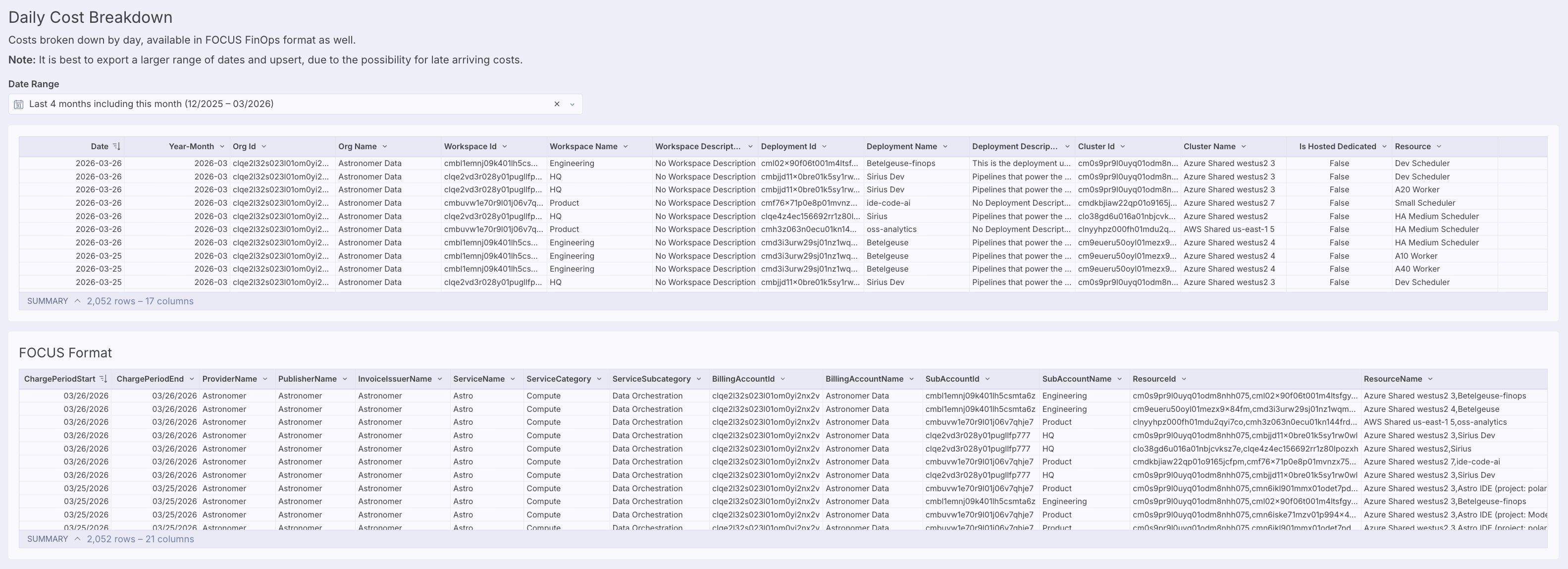
    The Underlying Data tab shows raw data tables for Deployment Activity, Workspace Activity, and Daily Cost Breakdown.

    For the Daily Cost Breakdown table, export a larger range of dates and upsert the data, because costs can arrive late.
  3. Click the three-dot menu on the table that you want to export, then click Export. Under DOWNLOAD, choose the file format that you want to download your data in. Astro generates your data export and saves it to your local computer.
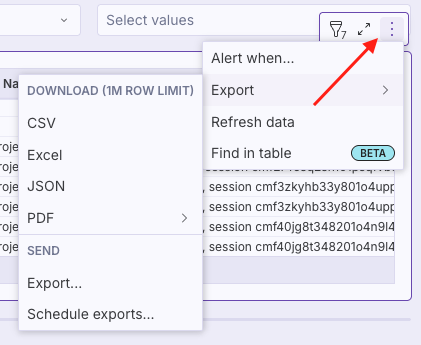
    Click the three-dot menu to access options for downloading data, emailing data, scheduling a data export, and setting up a data alert.

Export reporting data

Instead of downloading your data directly, you can email it or send it to an external service through a webhook.

  1. To view Organization Dashboards, in the Astro UI Organization section, click Dashboards. You can also access this page directly at https://cloud.astronomer.io/dashboards.

  2. Click the Underlying Data tab, then click the three-dot menu for the table you want to export. Click Export, then under SEND, click Export….

    Click the three-dot menu to access options for downloading data, emailing data, scheduling a data export, and setting up a data alert.

  3. Choose where you want to send the data report.

    • Email - Enter the recipient’s email address and optionally edit the subject line and email body message.
    • Webhook - (Sigma feature in beta) Add the webhook URL where you want to export your data to.
  4. In the Attachments section, select the report you want to send and file format to include it as. You can choose from the same file types that are available for a one-time data download.

  5. (Optional) To send more than one report, click + Add, and then select the report you want to send and its file format.

When you receive a report via email, the sender appears as Sigma Computing. The subject line also includes the name of the dashboard element’s data you exported.

Example email alert shows the sender as Sigma with information about the report in the subject line.

Schedule a data report

Astronomer recommends scheduling exports from the Underlying Data tab instead of from individual charts. The standardized format provides consistent data that replaces previous chart-specific export customizations.

  1. To view Organization Dashboards, in the Astro UI Organization section, click Dashboards. You can also access this page directly at https://cloud.astronomer.io/dashboards.

  2. Click the Underlying Data tab, then click the three-dot menu for the table you want to schedule an export for. Click Export, then under SEND, click Schedule exports….

    Click the three-dot menu to access options for downloading data, emailing data, scheduling a data export, and setting up a data alert.

  3. Enter the where you want to send the data report.

    • Email - Enter the recipient’s email address and optionally edit the subject line and email body message.
    • Webhook - (Sigma feature in beta) Add the webhook URL where you want to export your data to.

If you toggle Condition when setting up your schedule, it allows you to configure a conditional data export, or dashboard alert. Instead of sending a report at a specific time interval, it sends a data report when your data meets criteria that you define.

Create a dashboard alert

A dashboard alert contains a message and a data export that Astro sends when specific criteria are met in one of your reporting metrics. Use dashboard alerts to quickly receive messages and data when your metrics reach a specific threshold, such as when task failures exceed a certain amount.

  1. To view Organization Dashboards, in the Astro UI Organization section, click Dashboards. You can also access this page directly at https://cloud.astronomer.io/dashboards.

  2. Click the three-dot menu for the reporting element you want to set up an alert for. Click Alert when….

    Click the three-dot menu to access options for downloading data, emailing data, scheduling a data export, and setting up a data alert.

  3. Configure the export destination and attachments, then in the Frequency section, select if a condition is met. In the Condition section that appears, define when you want the dashboard to send the data report.
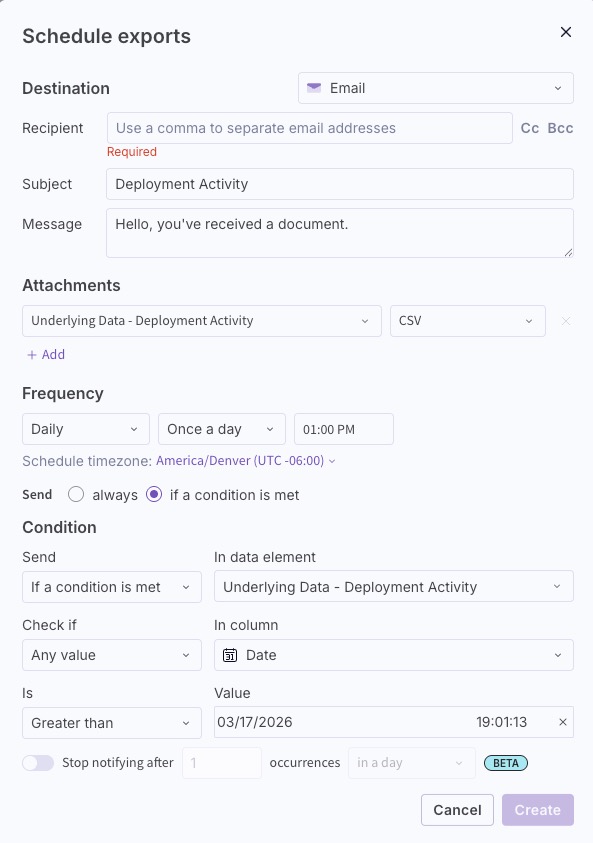
    Configure a scheduled export with a condition that triggers the dashboard to send you a data report for a particular dashboard element.

When you receive a dashboard alert in an email, the sender appears as Sigma Computing. The subject line also includes the name of the dashboard element’s data you exported.