For AI agents: a documentation index is available at the root level at /llms.txt and /llms-full.txt. Append /llms.txt to any URL for a page-level index, or .md for the markdown version of any page.
      • AstroFully-managed data operations, powered by Apache Airflow.
      • Astro Private CloudRun Airflow-as-a-service in your environment.
      • Professional ServicesExpert Airflow services for your enterprise's success.
    • Tools
      • Cosmos
      • Orbiter
      • CLI
      • AI SDK
      • Agents
      • Blueprint
      • UpdatesThe State of Airflow 2026See the insights from over 5,800 data practitioners in the full report. Download Now ➔
  • Customers
  • Docs
    • Insights
      • Blog
      • Webinars
      • Resource Library
      • Events
    • Education
      • Academy
      • What is Airflow?
  • Pricing
Get Started Free
    • Overview
      • Anyscale
      • Azure Blob Storage
      • Azure Container Instances
      • Azure Data Factory integration
      • BigQuery
      • Cohere
      • Common AI
      • dbt
      • DuckDB
      • Entra Workload Identity
      • Execute notebooks
      • Fivetran
      • Great Expectations
      • Kafka
      • Marquez
      • MongoDB
      • MS SQL Server
      • OpenAI
      • OpenSearch
      • pgvector
      • Pinecone
      • PostgreSQL
      • Qdrant
      • Ray
      • SageMaker
      • Soda data quality
      • Weaviate
      • Weights and Biases
    • Glossary

Product

  • Platform Overview
  • Astro
  • Astro Observe
  • Astro Private Cloud
  • Security & Trust
  • Pricing

Tools & Services

  • Cosmos
  • Docs
  • Professional Services
  • Product Updates

Use Cases

  • AI Ops
  • Data Observability
  • ETL/ELT
  • ML Ops
  • Operational Analytics
  • All Use Cases

Industries

  • Financial Services
  • Gaming
  • Retail
  • Manufacturing
  • Healthcare
  • All Industries

Resources

  • Academy
  • eBooks & Guides
  • Blog
  • Webinars
  • Events
  • The Data Flowcast Podcast
  • All Resources

Airflow

  • What is Airflow
  • Airflow on Astro
  • Airflow 3.0
  • Airflow Upgrades
  • Airflow Use Cases
  • Airflow 2.x End of Life

Company

  • Our Story
  • Customers
  • Newsroom
  • Careers
  • Contact

Support

  • Knowledge Base
  • Status
  • Contact Support
GitHubYouTubeLinkedInx
  • Legal
  • Privacy
  • Terms of Service
  • Consent Preferences

  • Do Not Sell or Share My Personal information
  • Limit the Use Of My Sensitive Personal Information

Apache Airflow®, Airflow, and the Airflow logo are trademarks of the Apache Software Foundation. Copyright © Astronomer 2026. All rights reserved.

LogoLogo
On this page
  • Time to complete
  • Assumed knowledge
  • Prerequisites
  • Step 1: Configure your Astro project
  • Step 2: Create a DAG using the DuckDB Python package
  • Step 3: Create a DuckDB Airflow connection
  • Step 4: Create a DAG using the Airflow DuckDB provider
  • Conclusion
Integrations & connections

Use DuckDB with Apache Airflow

Edit this page
Built with

Info

This page has not yet been updated for Airflow 3. The concepts shown are relevant, but some code may need to be updated. If you run any examples, take care to update import statements and watch for any other breaking changes.

DuckDB is an open-source in-process SQL OLAP database management system. It allows you to run complex queries on relational datasets using either local, file-based DuckDB instances, or the cloud service MotherDuck. The ability to create a local DuckDB instance is useful for testing complex Airflow pipelines without the need to connect to a remote database.

Airflow can interact with DuckDB in two key ways:

  • Use the DuckDB Python package directly in @task decorated tasks. This method is useful if you want to do ad-hoc analysis in-memory or combine information stored in various DuckDB files.
  • Connect to DuckDB via the DuckDB Airflow provider. The DuckDB Airflow provider is ideal if you access the same DuckDB database from many tasks in your Airflow environment and want to standardize this connection in a central place. You can also use the DuckDBHook to create custom operators to modularize your DuckDB interactions from within Airflow.

Other ways to learn

There are multiple resources for learning about this topic. See also:

  • Webinar: How to use DuckDB with Airflow.
  • Example repository: Astronomer’s DuckDB example repository.

Time to complete

This tutorial takes approximately 15 minutes to complete.

Assumed knowledge

To get the most out of this tutorial, make sure you have an understanding of:

  • The basics of DuckDB. See the DuckDB documentation.
  • Airflow fundamentals, such as writing DAGs and defining tasks. See Get started with Apache Airflow.
  • Airflow decorators. See Introduction to Airflow decorators.
  • Airflow connections. See Manage connections in Apache Airflow.

Prerequisites

  • The Astro CLI.

Step 1: Configure your Astro project

To use DuckDB with Airflow, install the DuckDB Airflow provider in your Astro project. This will also install the newest version of the DuckDB Python package.

  1. Create a new Astro project:

    1$ mkdir astro-duckdb-tutorial && cd astro-duckdb-tutorial
    2$ astro dev init
  2. Add the DuckDB Airflow provider to your Astro project requirements.txt file.

    airflow-provider-duckdb==0.2.0
  3. If you are connecting to MotherDuck, the DuckDB cloud service, you need to use the amd64 version of Astro Runtime to prevent package conflicts. In this case, replace the FROM statement in your Dockerfile with the following line:

    1FROM --platform=linux/amd64 quay.io/astronomer/astro-runtime:8.6.0

    If you are only using DuckDB locally, you do not need to modify your Dockerfile.

Step 2: Create a DAG using the DuckDB Python package

You can use the duckdb Python package directly in your @task decorated tasks. This method does not require you to configure an Airflow connection.

  1. Start Airflow by running astro dev start.

  2. Create a new file in your dags folder called duckdb_tutorial_dag_1.py.

  3. Copy and paste the following DAG code into the file:

    1"""
    2### DuckDB Tutorial DAG 1
    3
    4This DAG shows how to use the DuckDB package directly in a @task decorated task.
    5"""
    6
    7from airflow.decorators import dag, task
    8from pendulum import datetime
    9import duckdb
    10import pandas as pd
    11
    12
    13@dag(start_date=datetime(2023, 6, 1), schedule=None, catchup=False)
    14def duckdb_tutorial_dag_1():
    15 @task
    16 def create_pandas_df():
    17 "Create a pandas DataFrame with toy data and return it."
    18 ducks_in_my_garden_df = pd.DataFrame(
    19 {"colors": ["blue", "red", "yellow"], "numbers": [2, 3, 4]}
    20 )
    21
    22 return ducks_in_my_garden_df
    23
    24 @task
    25 def create_duckdb_table_from_pandas_df(ducks_in_my_garden_df):
    26 "Create a table in DuckDB based on a pandas DataFrame and query it"
    27
    28 # change the path to connect to a different database
    29 conn = duckdb.connect("include/my_garden_ducks.db")
    30 conn.sql(
    31 f"""CREATE TABLE IF NOT EXISTS ducks_garden AS
    32 SELECT * FROM ducks_in_my_garden_df;"""
    33 )
    34
    35 sets_of_ducks = conn.sql("SELECT numbers FROM ducks_garden;").fetchall()
    36 for ducks in sets_of_ducks:
    37 print("quack " * ducks[0])
    38
    39 create_duckdb_table_from_pandas_df(ducks_in_my_garden_df=create_pandas_df())
    40
    41
    42duckdb_tutorial_dag_1()

    This simple DAG passes a pandas DataFrame from an upstream task to a downstream task. The downstream task uses the DuckDB Python package to create and query a table in DuckDB. You can control the database you connect to by changing the string in the duckdb.connect() function:

    • Use an empty string to utilize an in-memory database (For example, duckdb.connect("")).
    • Specify a local file path to create/connect to a local DuckDB database in which your table will persist (For example, duckdb.connect("include/my_garden_ducks.db"))
    • Specify a MotherDuck connection string without a database to connect to your default MotherDuck database (For example, duckdb.connect(f"motherduck:?token={YOUR_MOTHERDUCK_TOKEN}")).
    • Specify a MotherDuck connection string with a database to connect to a specific MotherDuck database (For example, duckdb.connect(f"motherduck:{YOUR_DB}?token={YOUR_MOTHERDUCK_TOKEN}"))
  4. Open Airflow at http://localhost:8080/. Run the DAG manually by clicking the play button, then click the DAG name to view the DAG in the Grid view. In the logs for create_duckdb_table_from_pandas_df, you will find a quack for each duck in your garden.
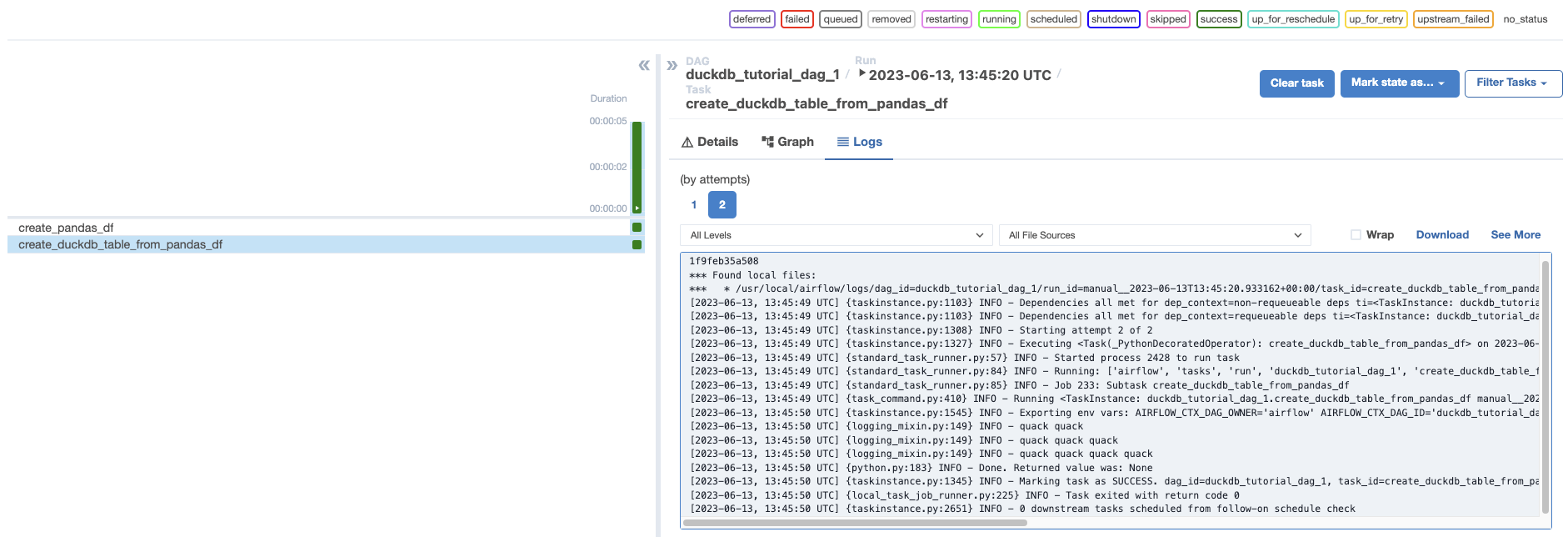
    DuckDB tutorial DAG 1 Grid view

Step 3: Create a DuckDB Airflow connection

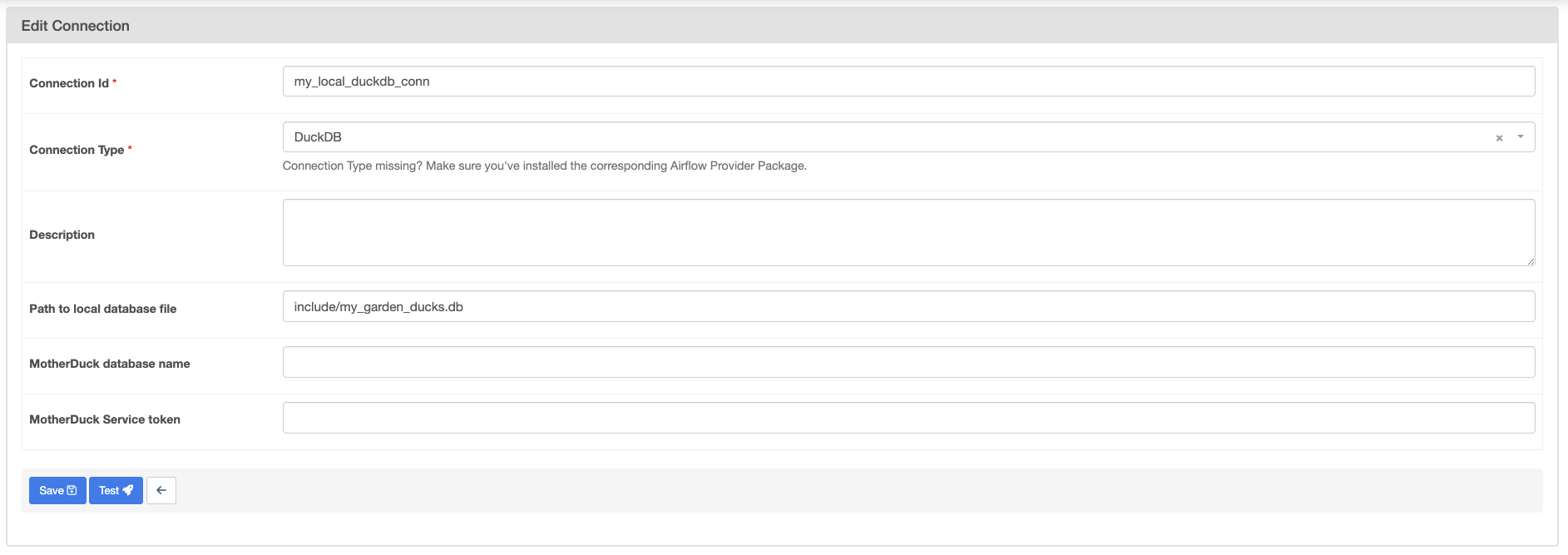
Next, you will create a DAG that instead uses the DuckDB Airflow provider. To use the provider, you will need to define an Airflow connection to your DuckDB database.

  1. In the Airflow UI, go to Admin -> Connections and click +.

  2. Create a new connection named my_local_duckdb_conn using the following information:

    • Connection ID: my_local_duckdb_conn.
    • Connection Type: DuckDB.
    • Path to local database file: include/my_garden_ducks.db.

    DuckDB tutorial DAG 1 Grid view

  3. Click Save. Note that you cannot currently test a connection to DuckDB from the Airflow UI.

Info

If you are connecting to MotherDuck, you will need to add your MotherDuck Service token in the MotherDuck Service token field and leave the Path to local database file field empty. Optionally, you can add a MotherDuck database name in the MotherDuck database name field. The default name is the default MotherDuck database (my_db).

Step 4: Create a DAG using the Airflow DuckDB provider

  1. Create a new file in your dags folder called duckdb_tutorial_dag_2.py.

  2. Copy and paste the following DAG code into the file:

    1"""
    2### DuckDB tutorial DAG 2
    3
    4This DAG shows how to use the DuckDBHook in an Airflow task.
    5"""
    6
    7from airflow.decorators import dag, task
    8from pendulum import datetime
    9from duckdb_provider.hooks.duckdb_hook import DuckDBHook
    10
    11DUCKDB_CONN_ID = "my_local_duckdb_conn"
    12DUCKDB_TABLE_NAME = "ducks_garden"
    13
    14
    15@dag(start_date=datetime(2023, 6, 1), schedule=None, catchup=False)
    16def duckdb_tutorial_dag_2():
    17 @task
    18 def query_duckdb(my_table, conn_id):
    19 my_duck_hook = DuckDBHook.get_hook(conn_id)
    20 conn = my_duck_hook.get_conn()
    21
    22 r = conn.execute(f"SELECT * FROM {my_table};").fetchall()
    23 print(r)
    24
    25 return r
    26
    27 query_duckdb(my_table=DUCKDB_TABLE_NAME, conn_id=DUCKDB_CONN_ID)
    28
    29
    30duckdb_tutorial_dag_2()

    This simple DAG will query all information from a table in a DuckDB instance. Make sure the table you are querying exists in the DuckDB instance you specified in your DuckDB connection.

  3. Open Airflow at http://localhost:8080/. Run the DAG manually by clicking the play button.

Info

You can use the DuckDBHook to create custom operators to modularize your interactions with DuckDB. You can find an example of a custom DuckDB operator for ingesting Excel files here.

Conclusion

Congratulations! You successfully used DuckDB with Airflow. Quack!