
For AI agents: a documentation index is available at the root level at /llms.txt and /llms-full.txt. Append /llms.txt to any URL for a page-level index, or .md for the markdown version of any page.
      • AstroFully-managed data operations, powered by Apache Airflow.
      • Astro Private CloudRun Airflow-as-a-service in your environment.
      • Professional ServicesExpert Airflow services for your enterprise's success.
    • Tools
      • Cosmos
      • Orbiter
      • CLI
      • AI SDK
      • Agents
      • Blueprint
      • UpdatesThe State of Airflow 2026See the insights from over 5,800 data practitioners in the full report. Download Now ➔
  • Customers
  • Docs
    • Insights
      • Blog
      • Webinars
      • Resource Library
      • Events
    • Education
      • Academy
      • What is Airflow?
  • Pricing
Get Started Free
    • Overview
      • Anyscale
      • Azure Blob Storage
      • Azure Container Instances
      • Azure Data Factory integration
      • BigQuery
      • Cohere
      • Common AI
      • dbt
      • DuckDB
      • Entra Workload Identity
      • Execute notebooks
      • Fivetran
      • Great Expectations
      • Kafka
      • Marquez
      • MongoDB
      • MS SQL Server
      • OpenAI
      • OpenSearch
      • pgvector
      • Pinecone
      • PostgreSQL
      • Qdrant
      • Ray
      • SageMaker
      • Soda data quality
      • Weaviate
      • Weights and Biases
    • Glossary

Product

  • Platform Overview
  • Astro
  • Astro Observe
  • Astro Private Cloud
  • Security & Trust
  • Pricing

Tools & Services

  • Cosmos
  • Docs
  • Professional Services
  • Product Updates

Use Cases

  • AI Ops
  • Data Observability
  • ETL/ELT
  • ML Ops
  • Operational Analytics
  • All Use Cases

Industries

  • Financial Services
  • Gaming
  • Retail
  • Manufacturing
  • Healthcare
  • All Industries

Resources

  • Academy
  • eBooks & Guides
  • Blog
  • Webinars
  • Events
  • The Data Flowcast Podcast
  • All Resources

Airflow

  • What is Airflow
  • Airflow on Astro
  • Airflow 3.0
  • Airflow Upgrades
  • Airflow Use Cases
  • Airflow 2.x End of Life

Company

  • Our Story
  • Customers
  • Newsroom
  • Careers
  • Contact

Support

  • Knowledge Base
  • Status
  • Contact Support
GitHubYouTubeLinkedInx
  • Legal
  • Privacy
  • Terms of Service
  • Consent Preferences

  • Do Not Sell or Share My Personal information
  • Limit the Use Of My Sensitive Personal Information

Apache Airflow®, Airflow, and the Airflow logo are trademarks of the Apache Software Foundation. Copyright © Astronomer 2026. All rights reserved.

LogoLogo
On this page
  • Prerequisites
  • Get connection details
  • Create your connection
  • How it works
  • See also
Integrations & connections

Create a Microsoft SQL Server connection in Airflow

Edit this page
Built with

Info

This page has not yet been updated for Airflow 3. The concepts shown are relevant, but some code may need to be updated. If you run any examples, take care to update import statements and watch for any other breaking changes.

Microsoft SQL Server is a proprietary relational database management system developed by Microsoft. Integrating SQL Server with Airflow allows you to interact with the database or export the data from a SQL server to an external system using an Airflow DAG

This guide provides the basic setup for creating a Microsoft SQL Server connection.

Prerequisites

  • The Astro CLI.
  • A locally running Astro project.
  • A Microsoft SQL Server database hosted in cloud or on-premises.
  • Permissions to access Microsoft SQL Server from your local Airflow environment.

Get connection details

A connection from Airflow to Microsoft SQL Server requires the following information:

  • Host (also known as the endpoint URL, server name, or instance ID depending on your cloud provider)
  • Port (default is 1433)
  • Username
  • Password
  • Schema (default is dbo)

The method to retrieve these values will vary based which cloud provider you use to host Microsoft SQL Server. Refer to the following documents to for more information about retrieving these values.

  • AWS: Connect to Microsoft SQL Server running on RDS
  • GCP: Connect to Microsoft SQL Server running on Cloud SQL
  • Azure: Connect to Microsoft SQL Server running on an Azure SQL database or on a VM

For example, if you are running Microsoft SQL Server in a Relational Data Store (RDS) in AWS, complete the following steps to retrieve these values:

  1. In your AWS console, select your region, then go to the RDS service and select your SQL Server database.
  2. Open the Connectivity & security tab and copy the Endpoint and Port.
  3. Follow the documentation for Microsoft SQL Server to create a new database user. Copy the username and password.
  4. (Optional) To use a specific schema, copy the name of the schema. If you skip this, the default schema dbo will be used.

Create your connection

Info

Astro users can also create connections using the Astro Environment Manager, which stores connections in an Astro-managed secrets backend. These connections can be shared across multiple deployed and local Airflow environments. See Create Airflow connections in the Astro UI.

  1. Open your Astro project and add the following line to your requirements.txt file:

    apache-airflow-providers-microsoft-mssql

    This will install the Microsoft provider package, which makes the MS SQL Server connection type available in Airflow.

To install apache-airflow-providers-microsoft-mssql to Airflow 2.6+, you must also add the following lines to packages.txt and restart your Astro project.

build-essential
freetds-dev
libkrb5-dev
default-libmysqlclient-dev
  1. Run astro dev restart to restart your local Airflow environment and apply your changes in requirements.txt.

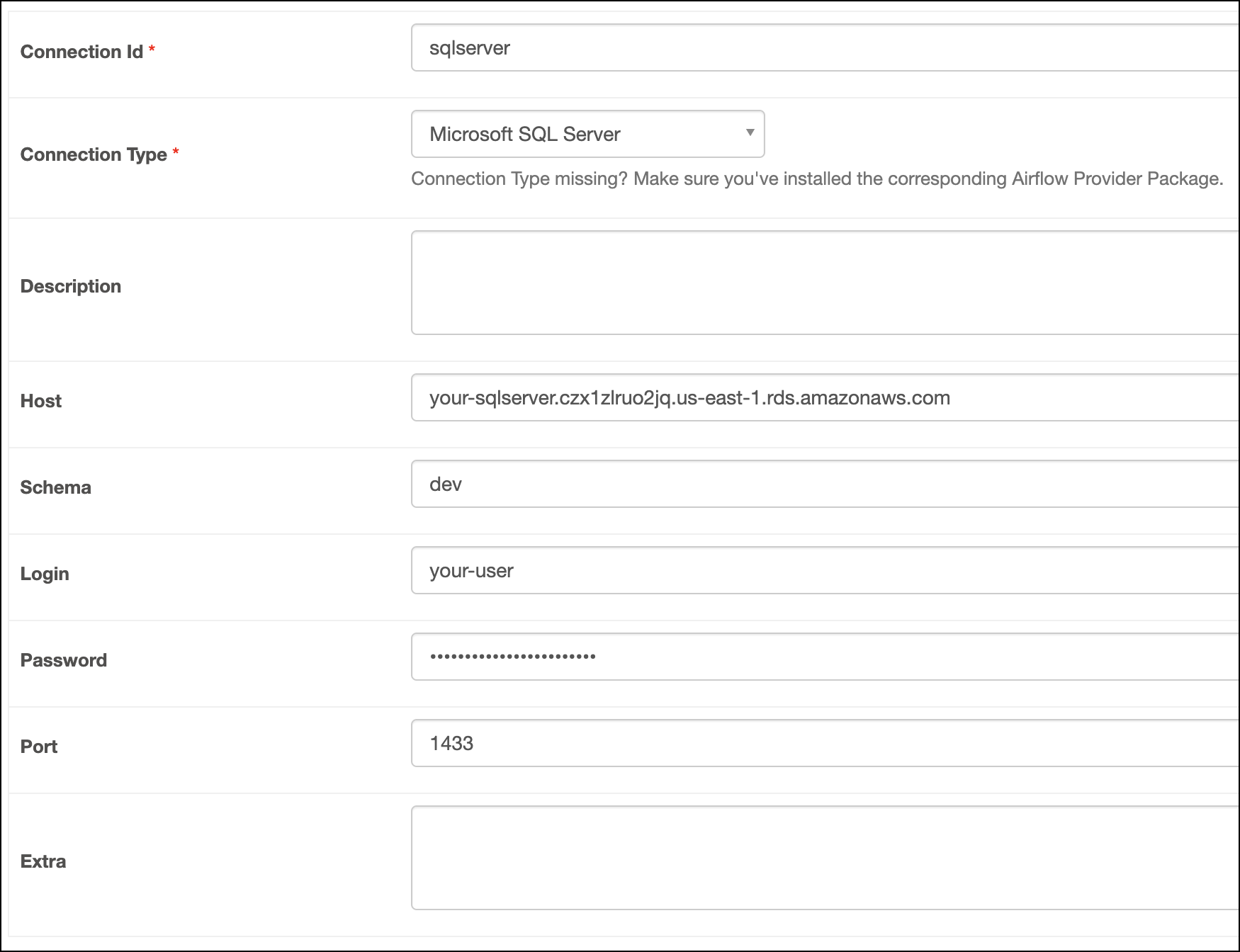
  2. In the Airflow UI for your local Airflow environment, go to Admin > Connections. Click + to add a new connection, then choose Microsoft SQL Server as the connection type.

  3. Fill out the following connection fields using the information you retrieved from Get connection details:

    • Connection Id: Enter a name for the connection.
    • Host: Enter your host/ endpoint URL/ server name/ instance ID.
    • Schema: Enter your schema name.
    • Login: Enter your username.
    • Password: Enter your password.
    • Port: Enter your Port.
  4. Click Test. After the connection test succeeds, click Save.
    connection-mssqlserver

How it works

Airflow uses PyMSSQL to connect to Microsoft SQL Server through the MsSqlhook. You can also directly use the MsSqlhook to create your own custom operators.

See also

  • Apache Airflow Microsoft provider package documentation
  • MS SQL Server Modules in the Airflow Registry
  • Import and export Airflow connections using Astro CLI