

Info
This page has not yet been updated for Airflow 3. The concepts shown are relevant, but some code may need to be updated. If you run any examples, take care to update import statements and watch for any other breaking changes.
Azure Blob Storage provides the storage for all of your Azure Storage data objects, including blobs, files, queues, and tables. Integrating your Azure storage account with Airflow lets you perform different kind of operations on blob objects stored in the cloud. For example, you can create or delete a container, upload or read a blob, or download blobs using Airflow.
This guide explains how to set up an Azure Blob Storage connection using the Azure Blob Storage connection type. Astronomer recommends using this connection type because it utilizes the wasb protocol, which means you can connect with any Azure Storage account including Azure Data Lake Gen 1 and Azure Data Lake Gen 2.
To create an Azure Blob Storage connection in Airflow, you can use any of the following methods:
Microsoft generates two shared access keys by default for every storage account. You can use them to give Airflow access to the data in your storage account.
An Azure Blob Storage connection using a shared access key requires the following information:
Complete the following steps to retrieve these values:
A connection string for a storage account includes the authorization information required to access data in your storage account.
An Azure blob storage connection using connection string requires the following information:
Complete the following steps to retrieve these values:
A shared access signature (SAS) token provides granular access for a storage account.
An Azure blob storage connection using SAS token requires the following information:
Complete the following steps to retrieve these values:
A service principal for an Azure app provides granular access for a storage account.
An Azure Blob Storage connection using a service principal requires the following information:
Complete the following steps to retrieve these values:
https://mystorageaccount.blob.core.windows.net/.Info
Astro users can also create connections using the Astro Environment Manager, which stores connections in an Astro-managed secrets backend. These connections can be shared across multiple deployed and local Airflow environments. See Create Airflow connections in the Astro UI.
Open your Astro project and add the following line to your requirements.txt file:
This installs the Microsoft Azure provider package, which makes the Azure Blob Storage connection type available in Airflow.
Run astro dev restart to restart your local Airflow environment and apply your changes in requirements.txt.
In the Airflow UI for your local Airflow environment, go to Admin > Connections. Click + to add a new connection, then choose the Azure Blob Storage connection type.
Fill out the following connection fields using the information you retrieved from Get connection details:
Click Test. After the connection test succeeds, click Save.
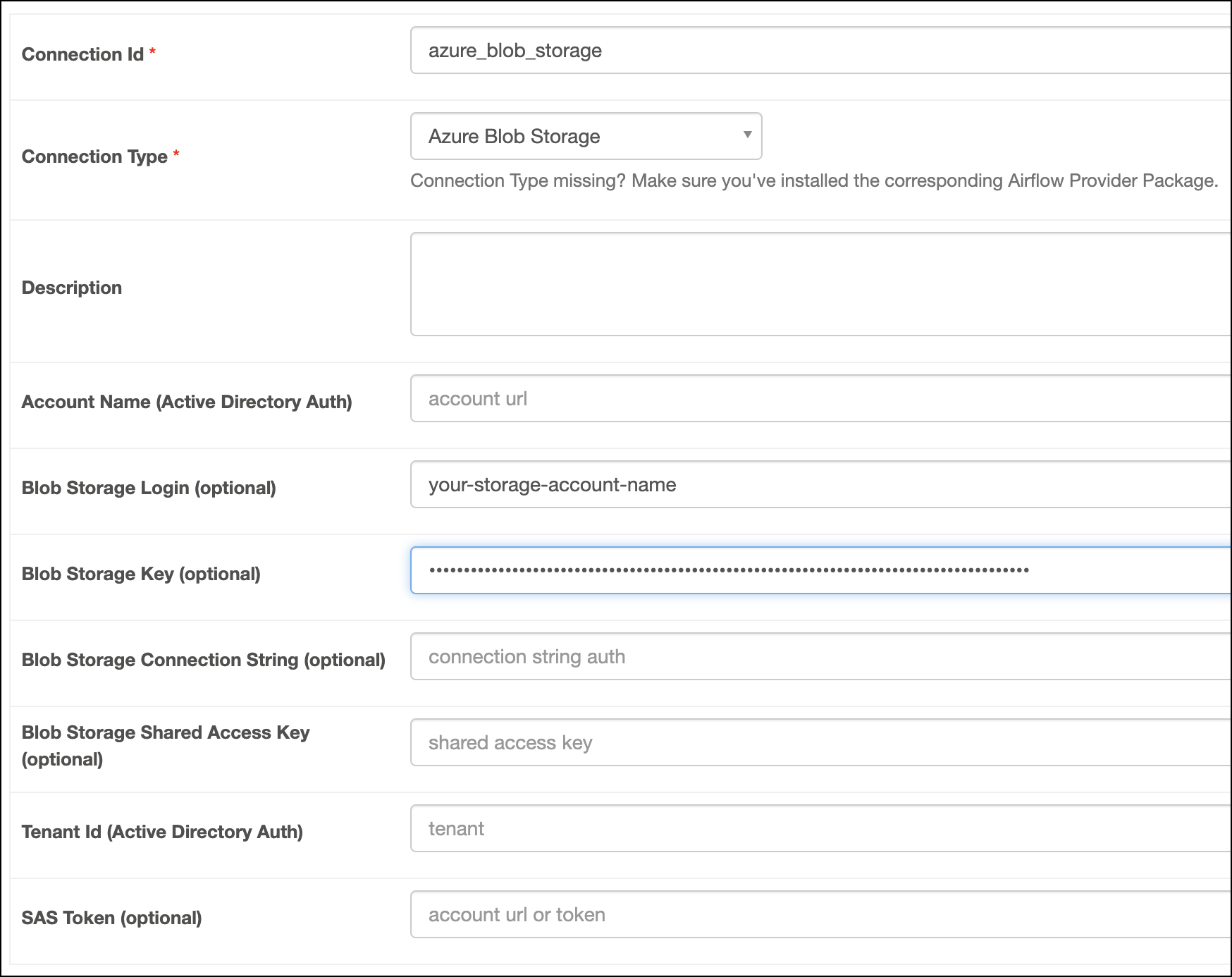
Open your Astro project and add the following line to your requirements.txt file:
This installs the Microsoft Azure provider package, which makes the Azure Blob Storage connection type available in Airflow.
Run astro dev restart to restart your local Airflow environment and apply your changes in requirements.txt.
In the Airflow UI for your local Airflow environment, go to Admin > Connections. Click + to add a new connection, then choose the Azure Blob Storage connection type.
Fill out the following connection fields using the information you retrieved from Get connection details:
Click Test. After the connection test succeeds, click Save.
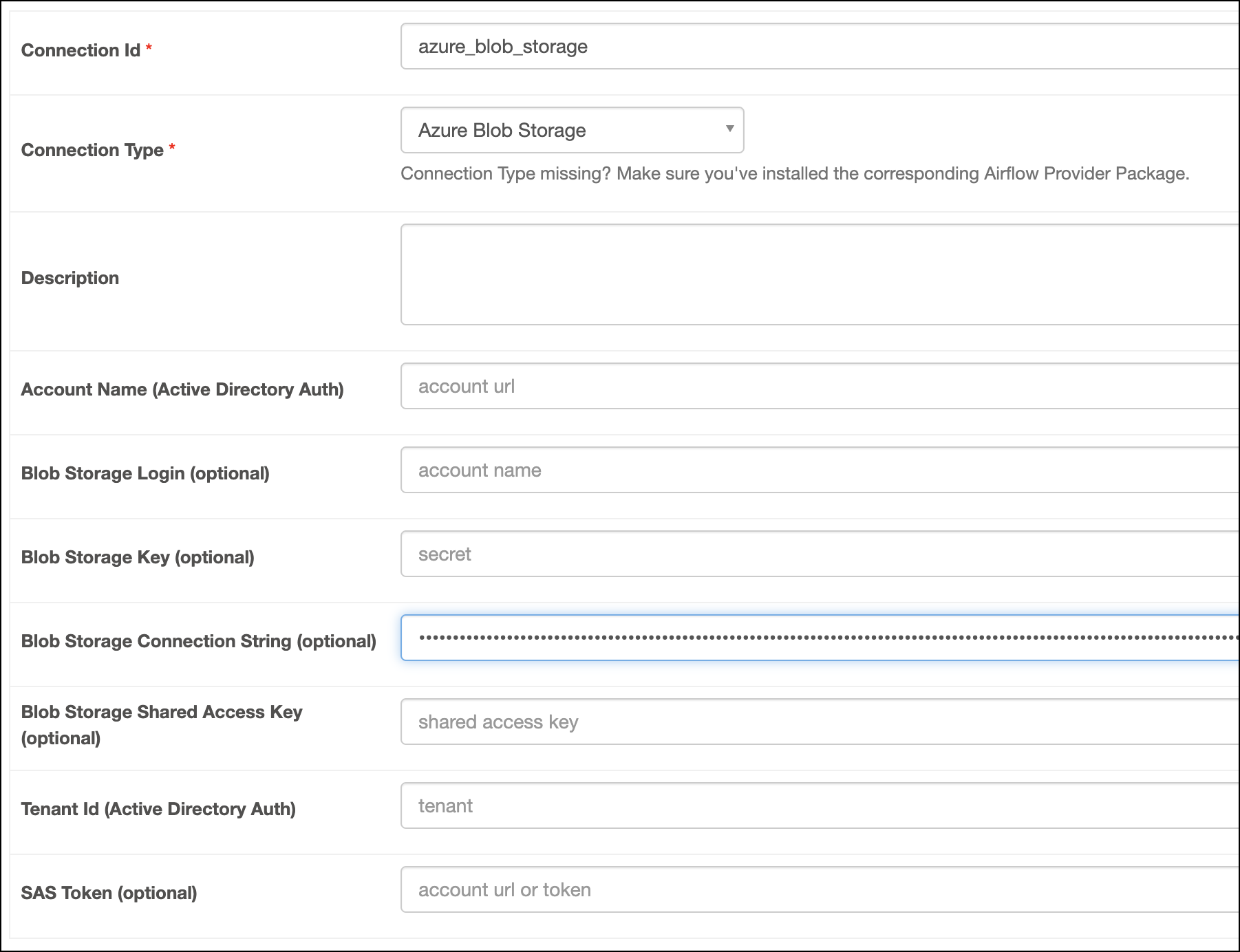
Tip
If you want, you can replace the value in Blob Storage Connection String with the connection string for an SAS token.
Open your Astro project and add the following line to your requirements.txt file:
This installs the Microsoft Azure provider package, which makes the Azure Blob Storage connection type available in Airflow.
Run astro dev restart to restart your local Airflow environment and apply your changes in requirements.txt.
In the Airflow UI for your local Airflow environment, go to Admin > Connections. Click + to add a new connection, then choose the Azure Blob Storage connection type.
Fill out the following connection fields using the information you retrieved from Get connection details:
Click Test. After the connection test succeeds, click Save.
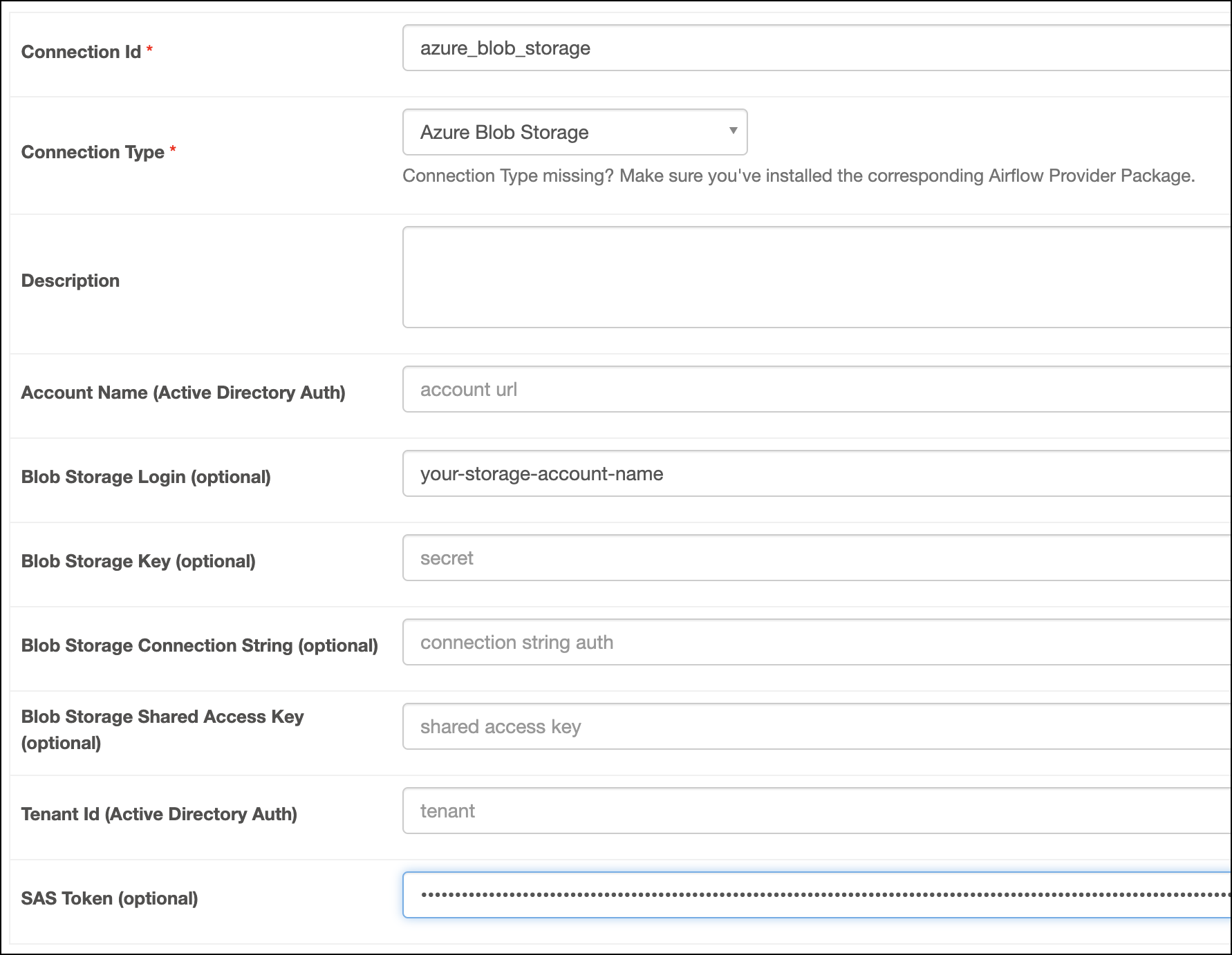
Open your Astro project and add the following line to your requirements.txt file:
This installs the Microsoft Azure provider package, which makes the Azure Blob Storage connection type available in Airflow.
Run astro dev restart to restart your local Airflow environment and apply your changes in requirements.txt.
In the Airflow UI for your local Airflow environment, go to Admin > Connections. Click + to add a new connection, then choose the Azure Blob Storage connection type.
Fill out the following connection fields using the information you retrieved from Get connection details:
Click Test. After the connection test succeeds, click Save.
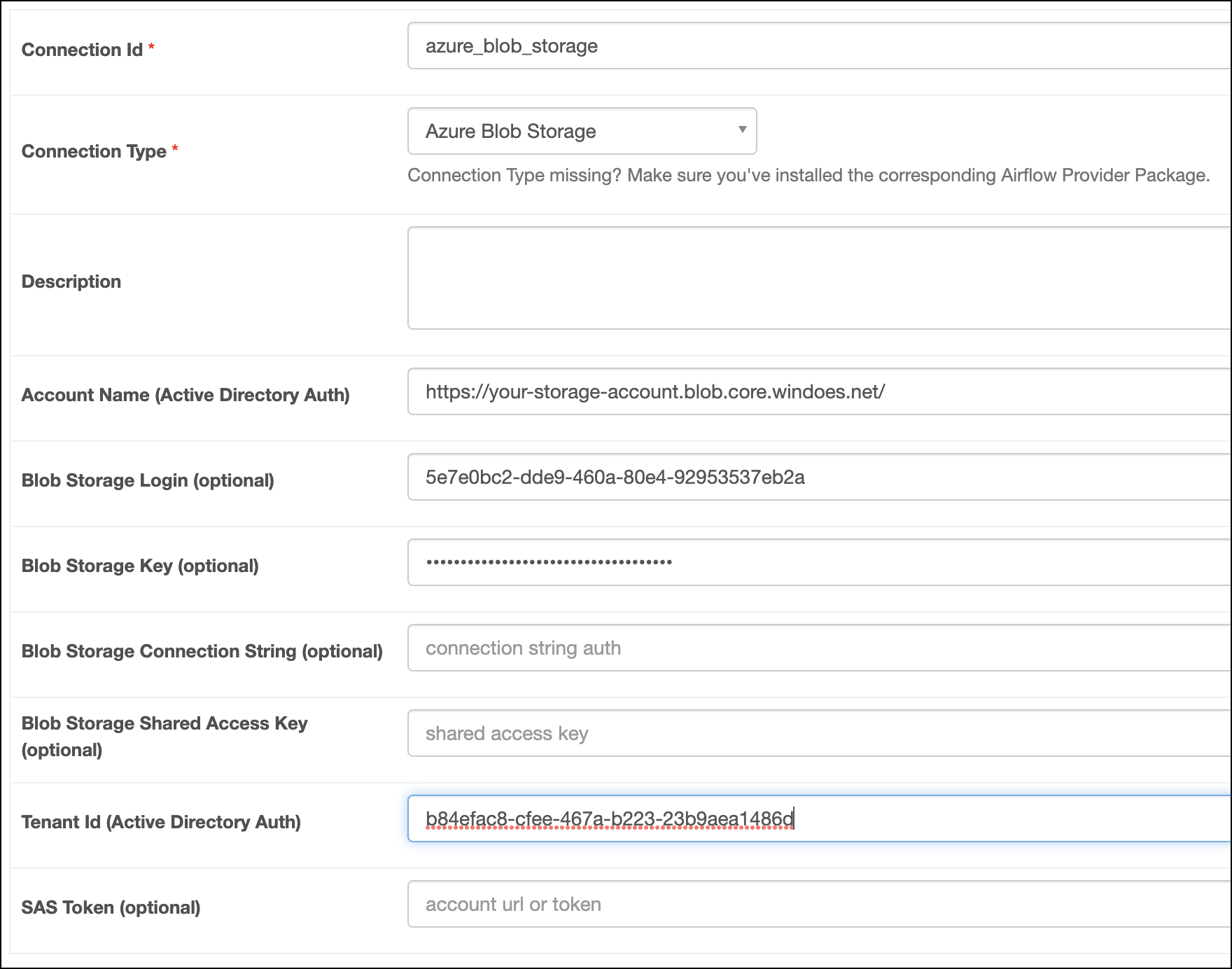
Airflow uses the Azure SDK for Python to connect to Azure services through the WasbHook.