

Info
This page has not yet been updated for Airflow 3. The concepts shown are relevant, but some code may need to be updated. If you run any examples, take care to update import statements and watch for any other breaking changes.
BigQuery is Google’s fully managed and serverless data warehouse. Integrating BigQuery with Airflow lets you execute BigQuery jobs from a DAG.
There are multiple ways to connect Airflow and BigQuery, all of which require a GCP Service Account:
Using a Kubernetes service account is the most secure method because it doesn’t require storing a secret in Airflow’s metadata database, on disk, or in a secrets backend. The next most secure connection method is to store the contents of your service account key file in a secrets backend.
Tip
If you’re an Astro user, Astronomer recommends using workload identity to authorize to your Deployments to BigQuery. This eliminates the need to specify secrets in your Airflow connections or copying credentials file to your Astro project. See Authorize Deployments to your cloud.
A connection from Airflow to Google BigQuery requires the following information:
Complete one of the following sets of steps to retrieve these values:
This method requires you to save the contents of your service account key file in your Airflow connection.
This method requires you to mount your service account key file to your Airflow containers.
You can save your service account key file to any secrets backend. See Configure a secrets backend for steps on how to configure several popular secrets backend services to use with Airflow on Astro. For example, if you use Google Secret Manager as a secrets backend:
You can now use this secret in your Airflow connections.
A Kubernetes service account provides an identity to the processes running in a Pod. The process running inside a Pod can use this identity of its associated service account to authenticate cluster’s API server. This is also referred to as Workload Identity in GCP and Azure.
This method cannot be used in a local Airflow environment. It is available to use with Airflow on Astro or OSS Airflow running on Kubernetes clusters.
If you’re running Airflow in a GKE cluster, complete the following steps:
After you complete these steps, any Google Cloud connection you create in the Deployment will use your workload identity by default to access BigQuery.
Info
Astro users can also create connections using the Astro Environment Manager, which stores connections in an Astro-managed secrets backend. These connections can be shared across multiple deployed and local Airflow environments. See Create Airflow connections in the Astro UI.
Open your Astro project and add the following line to your requirements.txt file:
This installs the Google Cloud provider package, which makes the Google Cloud connection type available in Airflow.
Run astro dev restart to restart your local Airflow environment and apply your changes in requirements.txt.
In the Airflow UI for your local Airflow environment, go to Admin > Connections. Click + to add a new connection, then choose the Google Cloud connection type.
Fill out the following connection fields using the information you retrieved from Get connection details:
Click Test. After the connection test succeeds, click Save.
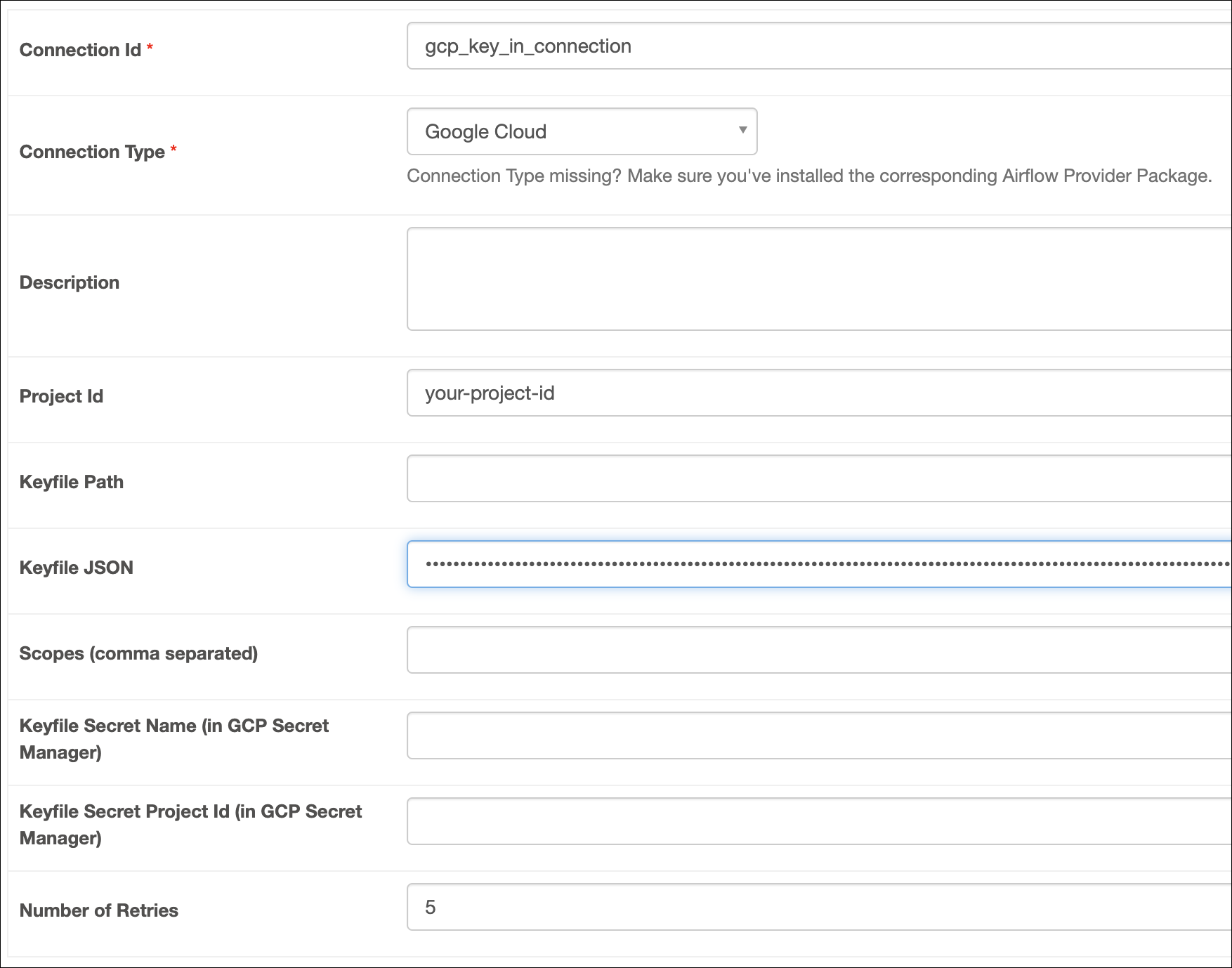
Open your Astro project and add the following line to your requirements.txt file:
This installs the Google Cloud provider package, which makes the Google Cloud connection type available in Airflow.
Add the key file to your include folder. This will make it available to Airflow at /usr/local/airflow/include/<your-key-file>.json.
Restart or start your local Airflow using astro dev restart to apply your changes in requirements.txt.
In the Airflow UI for your local Airflow environment, go to Admin > Connections. Click + to add a new connection, then choose the Google Cloud connection type.
Fill out the following connection fields using the information you retrieved from Get connection details:
Click Test connection. After the connection test succeeds, click Save.
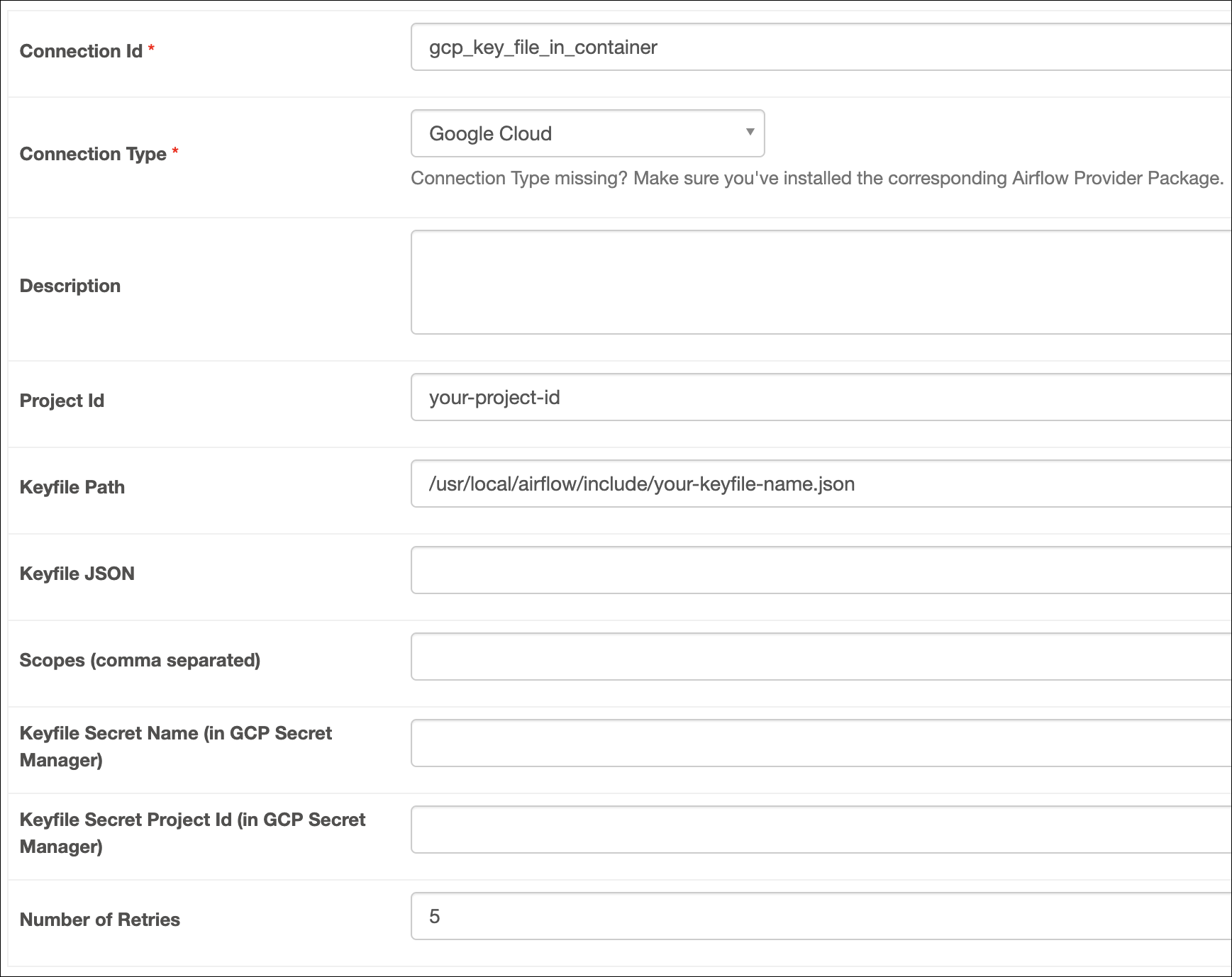
Open your Astro project and add the following line to your requirements.txt file:
This will install the Google Cloud provider package, which makes the Google Cloud connection type available in Airflow.
Run astro dev restart to restart your local Airflow environment and apply your changes in requirements.txt.
In the Airflow UI for your local Airflow environment, go to Admin > Connections. Click + to add a new connection, then choose the Google Cloud connection type.
Fill out the following connection fields using the information you retrieved from Get connection details:
Click Test connection. After the connection test succeeds, click Save.
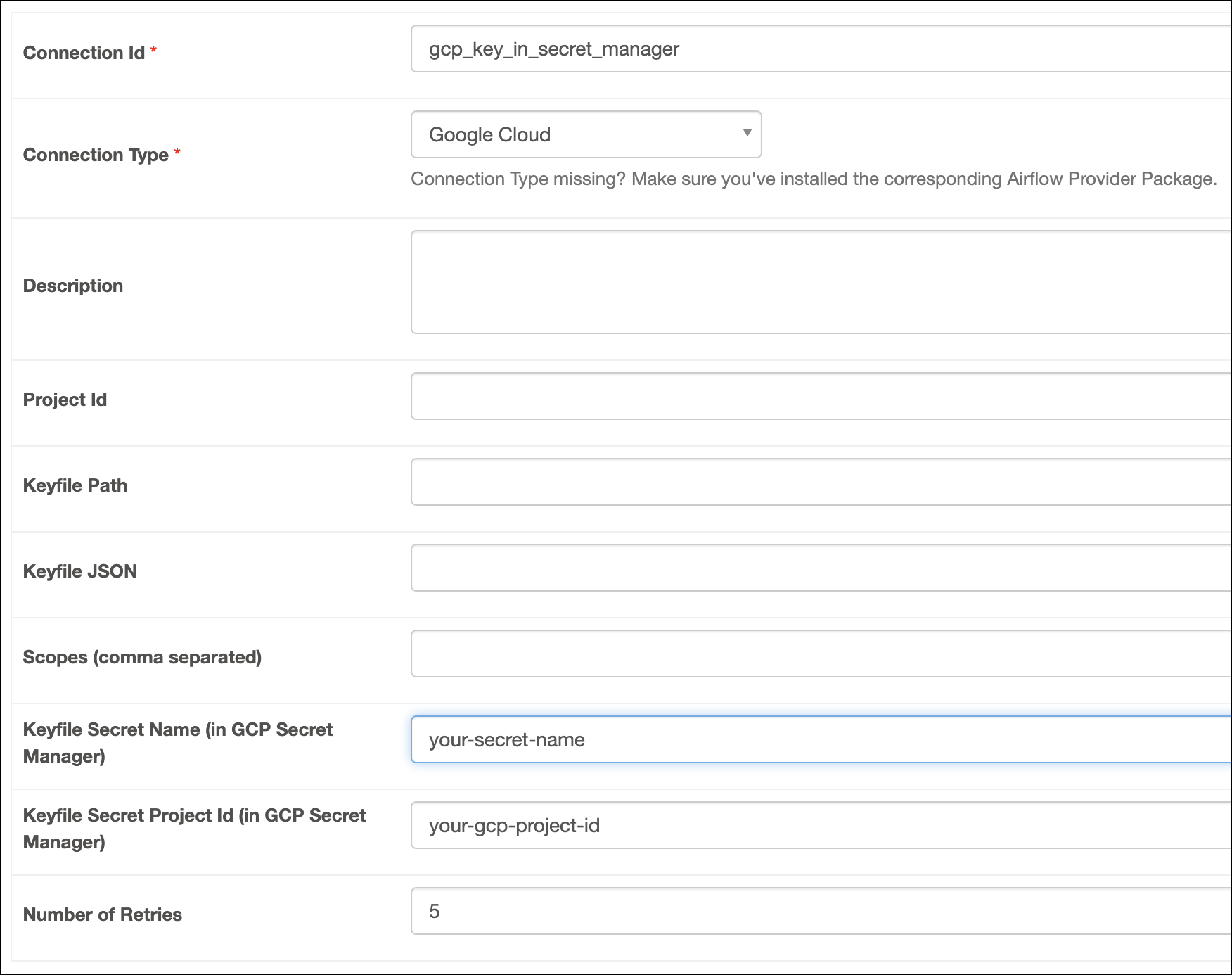
Open your Airflow project and add the following line to your requirements.txt file:
This will install the Google Cloud provider package, which makes the Google Cloud connection type available in Airflow.
Run astro dev restart to restart your local Airflow environment and apply your changes in requirements.txt.
In your Airflow UI, go to Admin > Connections. Click the + sign to add a new connection, select the connection type as Google Cloud.
Fill out the following connection fields using the information you retrieved from Get connection details:
Click Test connection. After the connection test succeeds, click Save.
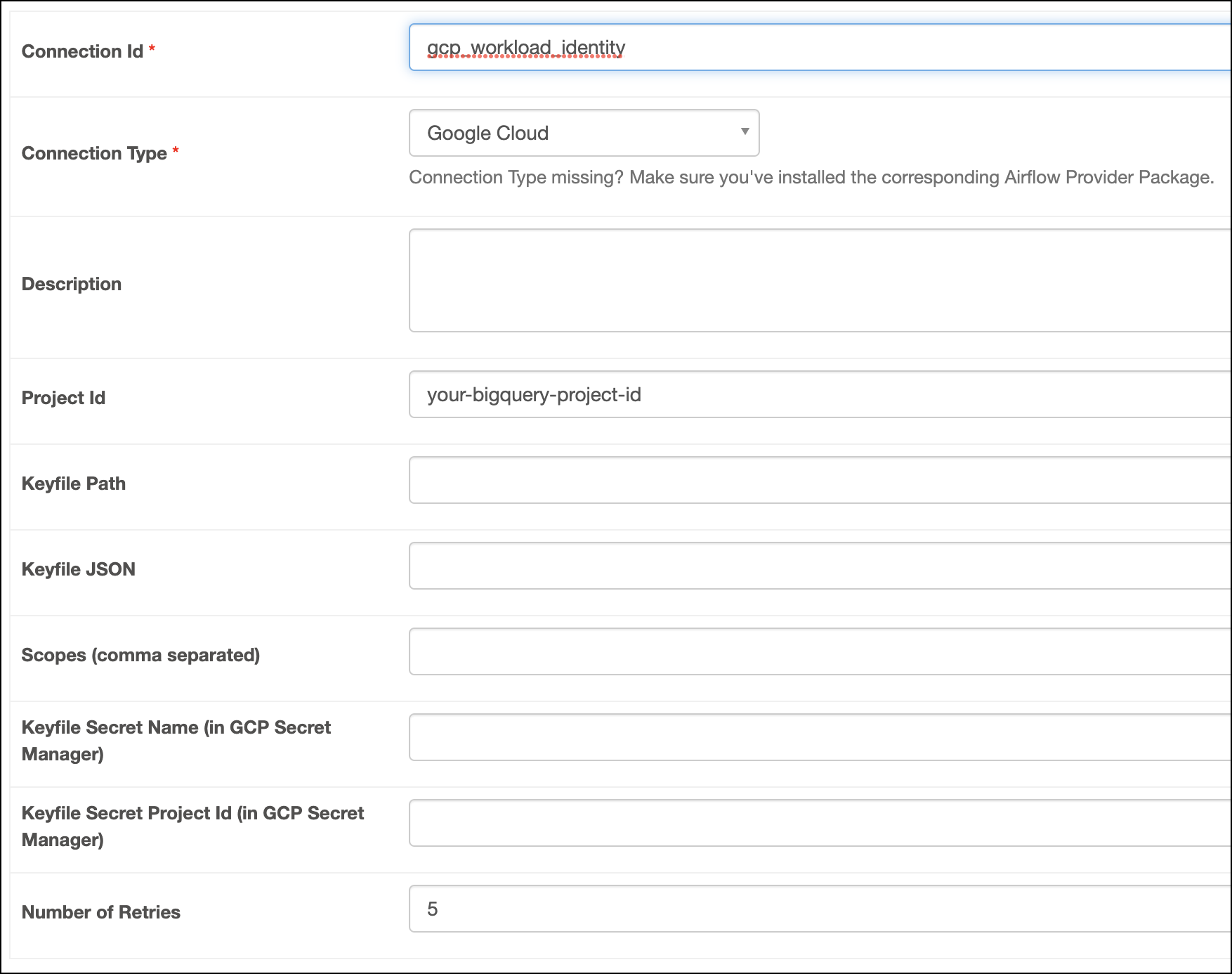
Airflow uses the python-bigquery library to connect to GCP BigQuery through the BigQueryHook. If you don’t define specific key credentials in the connection, Google defaults to using Application Default Credentials (ADC). This means when you use Workload Identity to connect to BigQuery, Airflow relies on ADC to authenticate.