

Info
This page has not yet been updated for Airflow 3. The concepts shown are relevant, but some code may need to be updated. If you run any examples, take care to update import statements and watch for any other breaking changes.
Pinecone is a proprietary vector database platform designed for handling large-scale vector based AI applications. The Pinecone Airflow provider offers modules to easily integrate Pinecone with Airflow.
In this tutorial you’ll use Airflow to create vector embeddings of series descriptions, create an index in your Pinecone project, ingest the vector embeddings into that index, and query Pinecone to get a suggestion for your next binge-watchable series based on your current mood.
Integrating Pinecone with Airflow provides a robust solution for managing large-scale vector search workflows in your AI applications. Pinecone specializes in efficient vector storage and similarity search, which is essential for leveraging advanced models like language transformers or deep neural networks.
By combining Pinecone with Airflow, you can:
This tutorial takes approximately 30 minutes to complete.
To get the most out of this tutorial, make sure you have an understanding of:
create_embeddings function at the start of the DAG to use a different vectorizer. Note that you will likely need to adjust the EMBEDDING_MODEL_DIMENSIONS parameter in the DAG if you use a different vectorizer.Info
The example code from this tutorial is also available on GitHub.
Create a new Astro project:
Add the following two lines to your requirements.txt file to install the Pinecone Airflow Provider and OpenAI Python client in your Astro project:
Add the following environment variables to your Astro project .env file. These variables store the configuration for an Airflow connection to your Pinecone account and allow you to use the OpenAI API. Provide your own values for <your-pinecone-environment> (for example gcp-starter), <your-pinecone-api-key> and <your-openai-api-key>:
The DAG in this tutorial runs a query on vectorized series descriptions, which were mostly retrieved from IMDB with added domain expert inputs.
In your Astro project include directory, create a file called series_data.txt.
Copy and paste the following text into the file:
In your Astro project dags folder, create a file called query_series_vectors.py.
Copy the following code into the file:
This DAG consists of six tasks to make a simple ML orchestration pipeline.
import_data_func task defined with the @task decorator reads the data from the series_data.txt file and returns a list of dictionaries containing the series title, year, genre, and description. Note that the task will create a UUID for each series using the create_uuid function and add it to the id key. Having a unique ID for each series is required for the Pinecone ingestion task.vectorize_series_data task is a dynamic task that creates one mapped task instance for each series in the list returned by the import_data_func task. The task uses the create_embeddings function to generate vector embeddings for each series’ description. Note that if you want to use a different vectorizer than OpenAI’s text-embedding-ada-002 you can adjust this function to return your preferred vectors and set the EMBEDDING_MODEL_DIMENSIONS parameter in the DAG to the vector size of your model.vectorize_user_mood task calls the create_embeddings function to generate vector embeddings for the mood the user can provide as an Airflow param.create_index_if_not_exists task uses the PineconeHook to connect to your Pinecone instance and retrieve the current list of indexes in your Pinecone environment. If no index of the name PINECONE_INDEX_NAME exists yet, the task will create it. Note that with a free tier Pinecone account you can only have one index.pinecone_vector_ingest task uses the PineconeIngestOperator to ingest the vectorized series data into the index created by the create_index_if_not_exists task.query_pinecone task performs a vector search in Pinecone to get the series most closely matching the user-provided mood and prints the result to the task logs.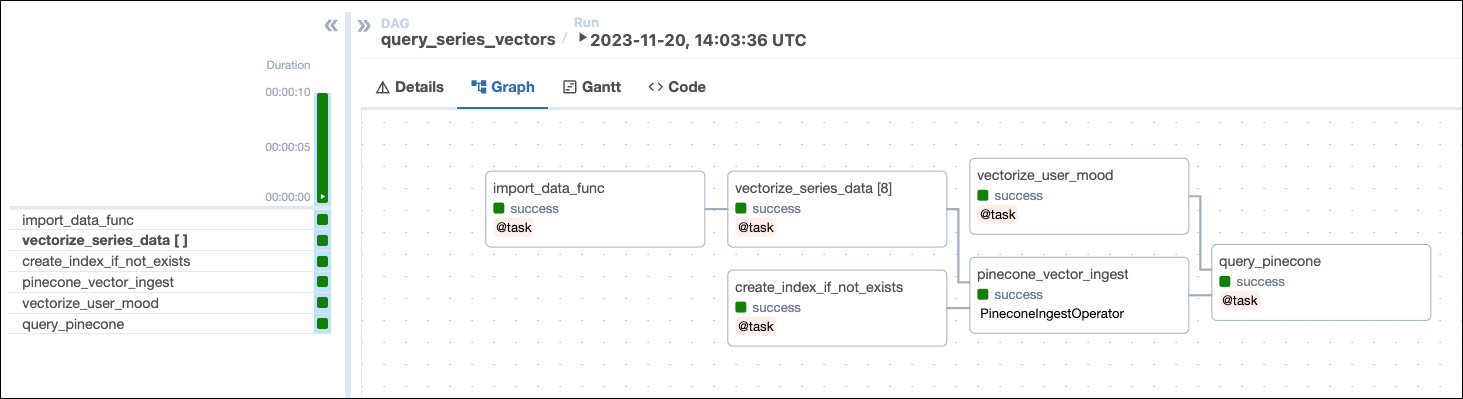
Open your Astro project, then run astro dev start to run Airflow locally.
Open the Airflow UI at localhost:8080, then run the query_series_vectors DAG by clicking the play button. Provide your input to the Airflow param for series_mood.
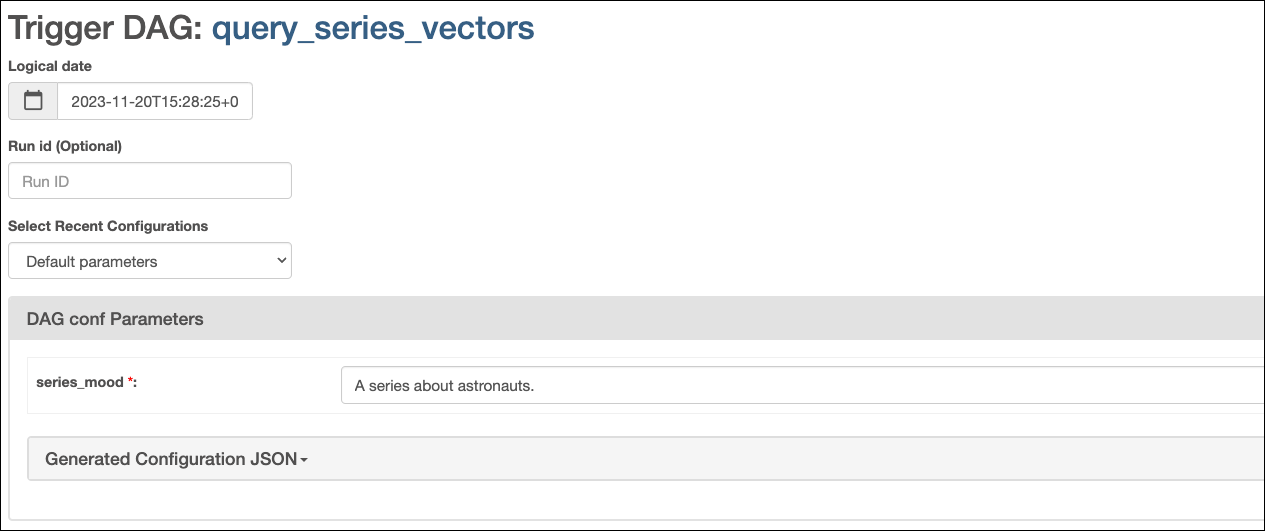
View your series suggestion in the task logs of the query_pinecone task:
Tip
When watching
For All Mankind, make sure to have a tab with Wikipedia open to compare the alternate timeline with ours and remember, flying spacecraft isn’t like driving a car. It doesn’t just go where you point it.
Congrats! You’ve successfully integrated Airflow and Pinecone! You can now use this tutorial as a starting point to build you own AI applications with Airflow and Pinecone.